
How to add a new provider
How to add a new provider
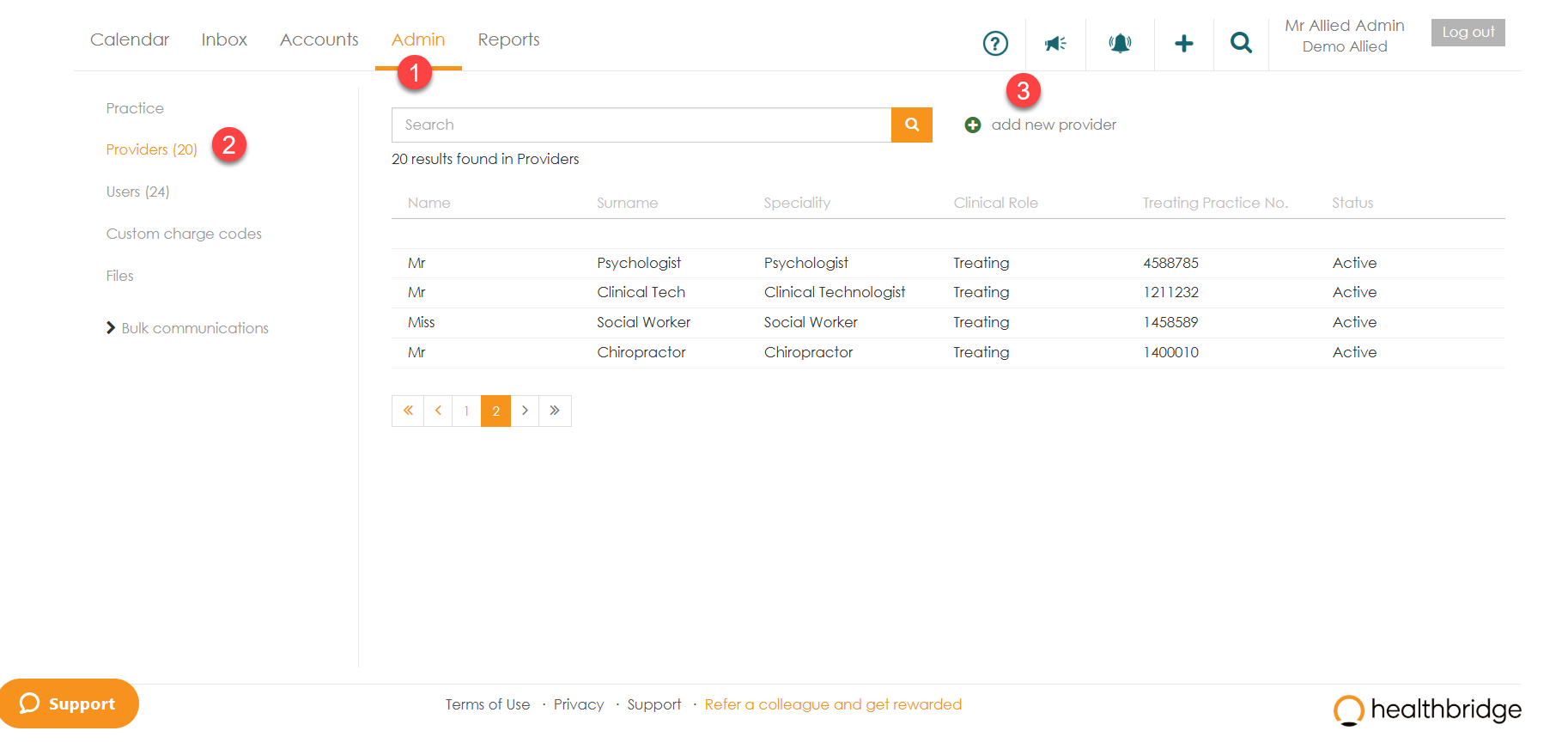
To add a new provider (Locum, Doctor, etc) to myMPS,
- Click on ‘Admin’.
- Select ‘Providers’.
- Click ‘add new provider’.
4. The ‘Details’ screen will populate for you to complete all the information required. If the provider does not have their own treating practice number, click the option ‘Provider does not have their own treating practice no.’ and then select a treating practice number from the drop-down menu.
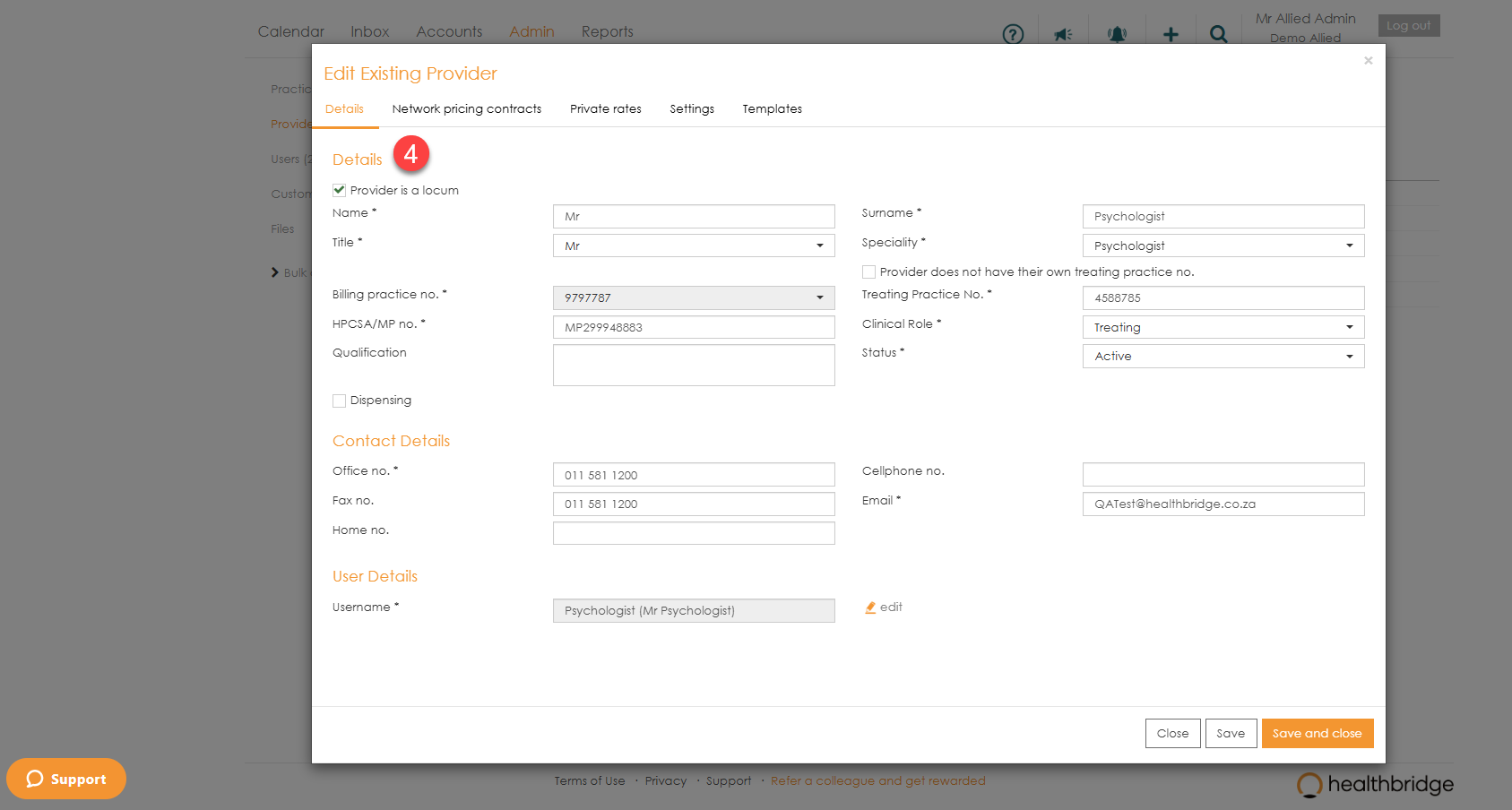
Note: The ‘User Details’ section enables you to link a treating provider to a user. You can either link a provider to an existing user by searching for the username in the ‘Username’ field or add a new user by clicking on the ‘add new user’ link.
Once all information has been completed, click ‘Save’.
A pop-up will give you an option to complete the rest of the provider’s setup or just save it as is

- ‘Details’ - This tab will show all your provider data that you have captured.
- ‘Network pricing contracts’ - This tab will bring up all your contracts with various schemes.
- ‘Private rates’ - Will allow you to add custom rates for specific items and procedures.
- ‘Settings’ - For provider-specific preferences.
- 'Templates' - This tab will allow you to create provider-specific templates.