
Adding an appointment to the Calendar
Adding an appointment to the Calendar
To add an appointment to the calendar, click on the selected time slot. You will be presented with the appointment window.
Click on the ‘time’ to open the time selection window. Select the hour and the minutes for the appointment.
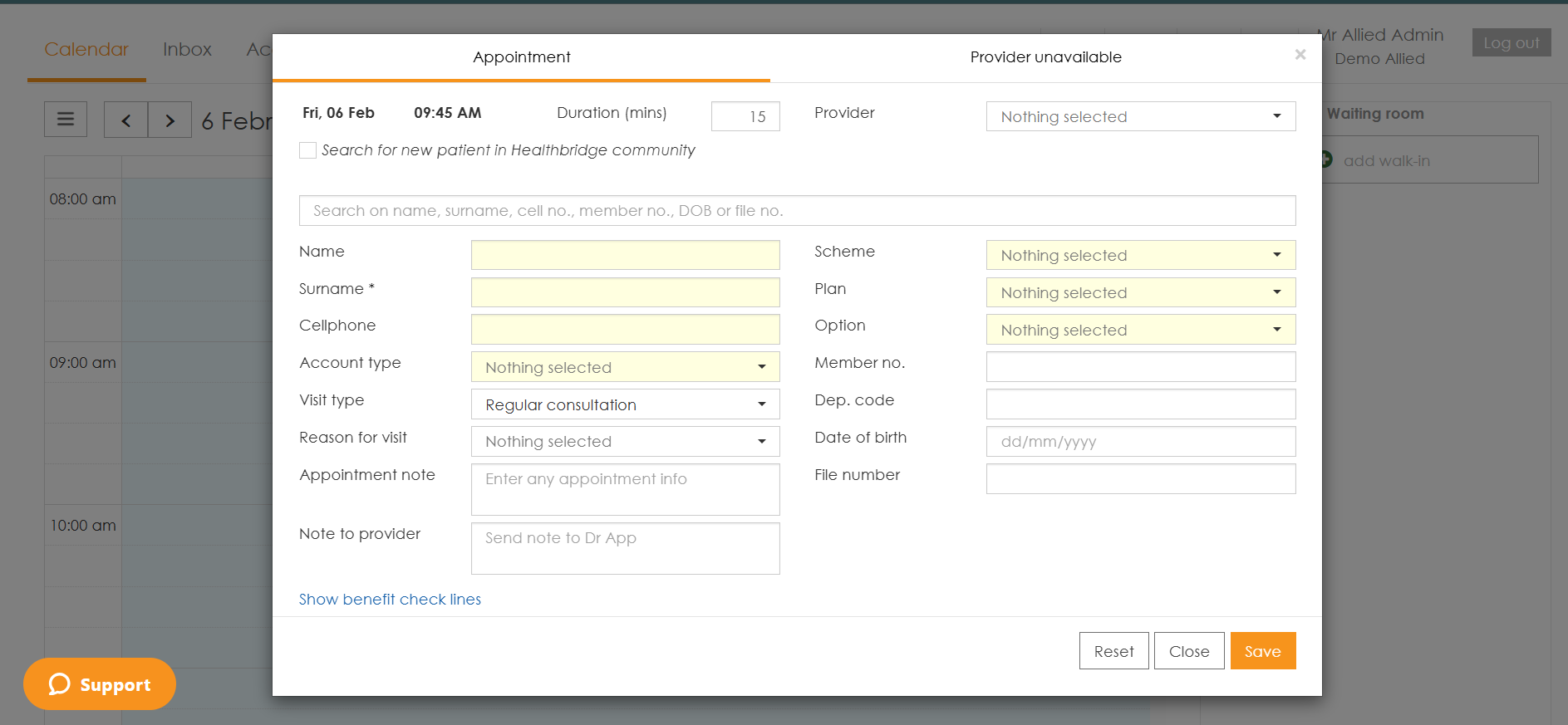

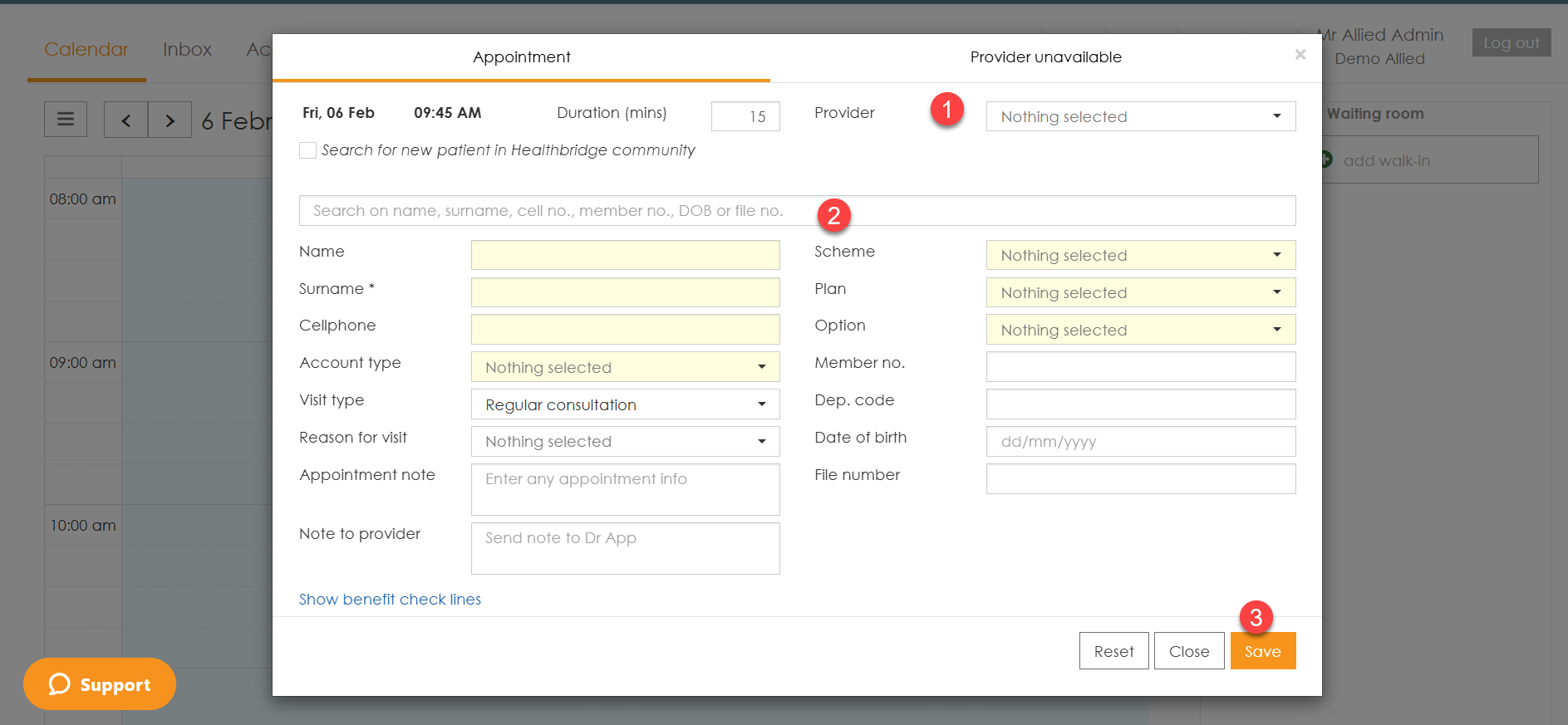
- Select the ‘Provider’ and length of the appointment. For multi-branch practices: you will also need to select the ‘Branch’ that the patient will be visiting. Only providers linked to a specific branch will be available when selecting the provider.
- Select the patient by typing in "Name", "Surname", "Cell no" or "date of birth" in the search block. myMPS will bring up a list of all patients that meet those parameters. Once you select your patient, the details that are on record for them will populate in the template. Alternatively, if you select ‘Search for a new patient in Healthbridge community’, enter the patient's full medical aid number and myMPS will populate with information already on file for saved patients.
- If the patient is not a current patient at your practice, enter the required information and click ‘Save’.
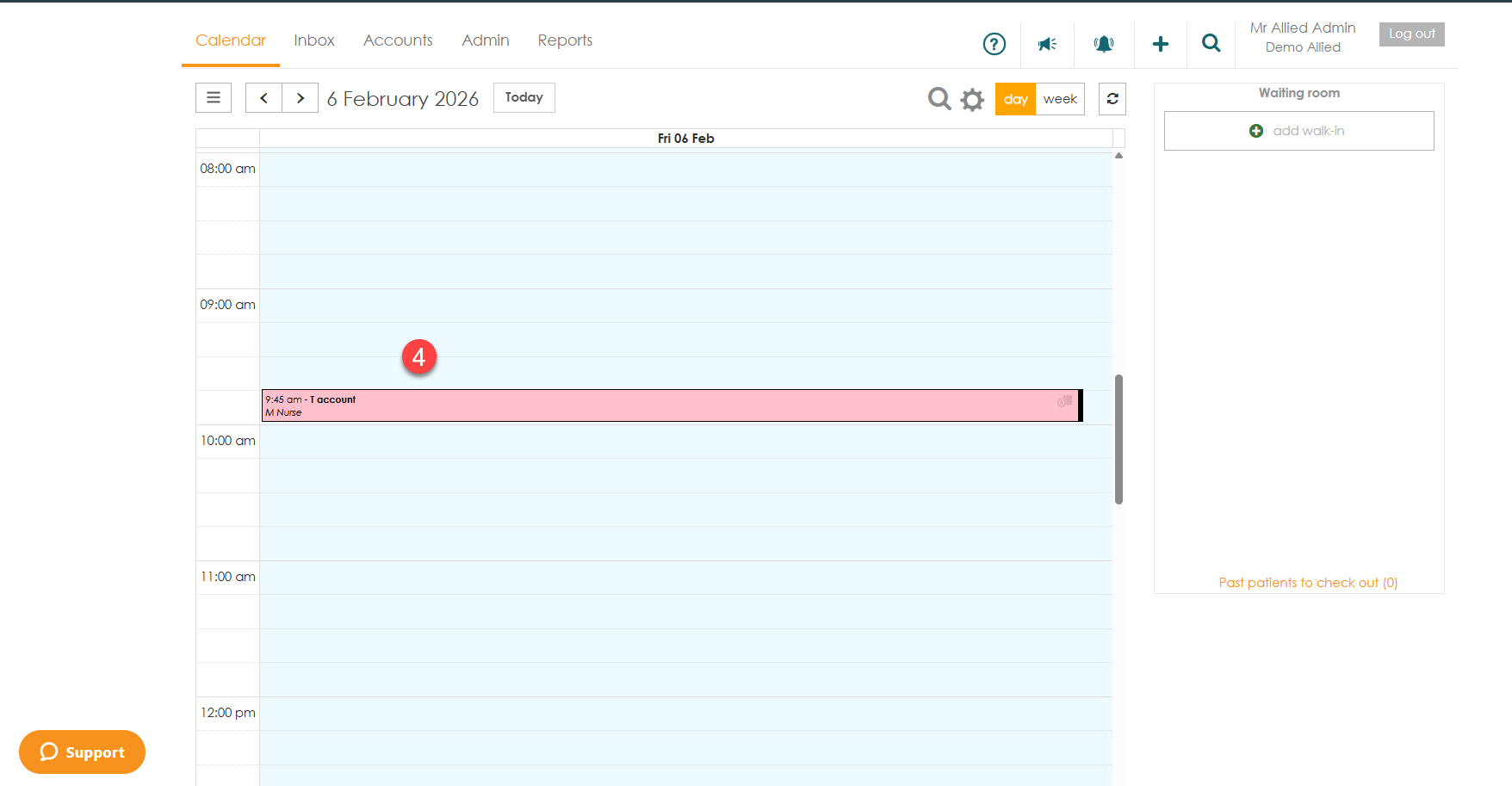
- The patient's appointment will then show in the calendar.
If you want to book out time in the diary for a specific provider, click on the ‘Provider unavailable’ tab. This will allow you to book a block of time and add a reason.
