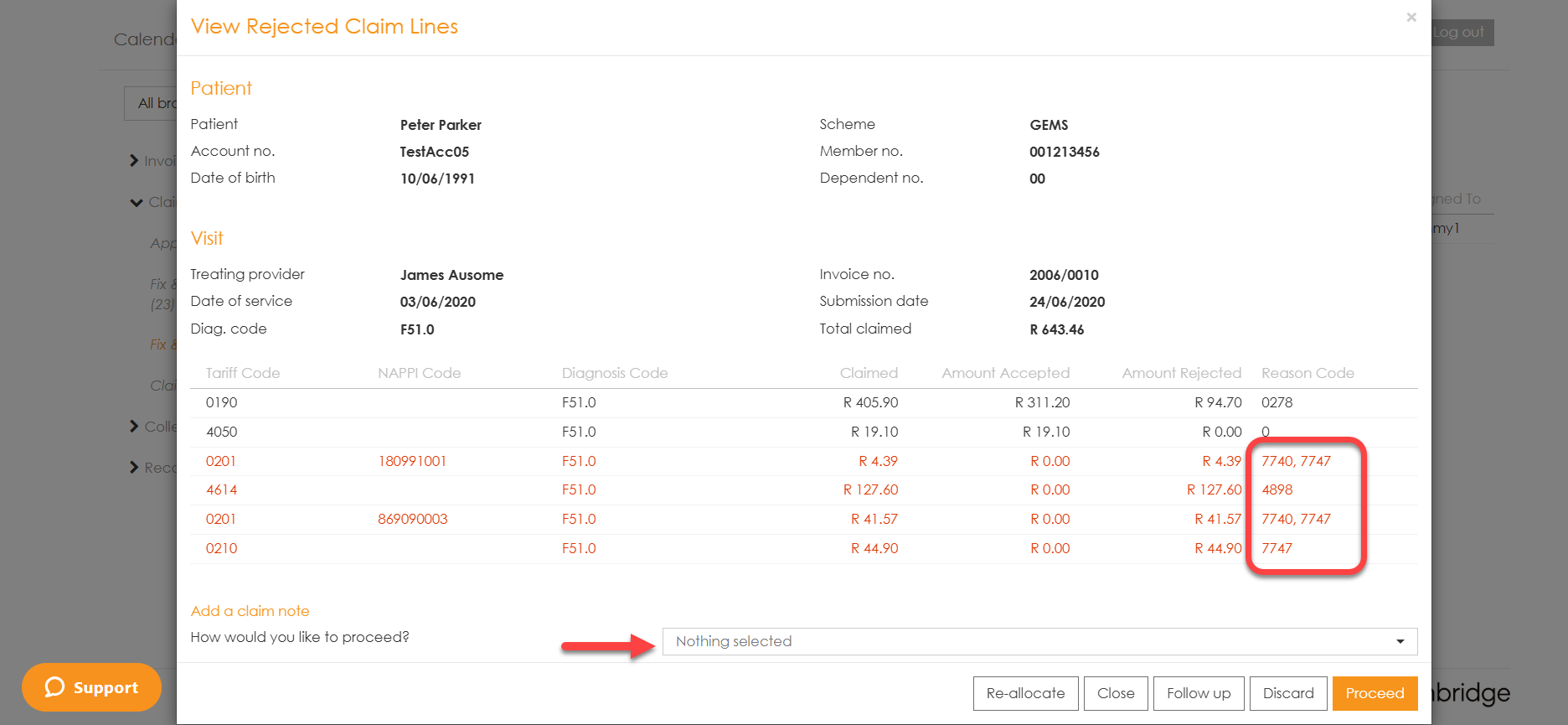
How to handle claim rejections via myMPS
All rejected claims are found in the ‘Inbox’ tab under the ‘Claims’ menu.
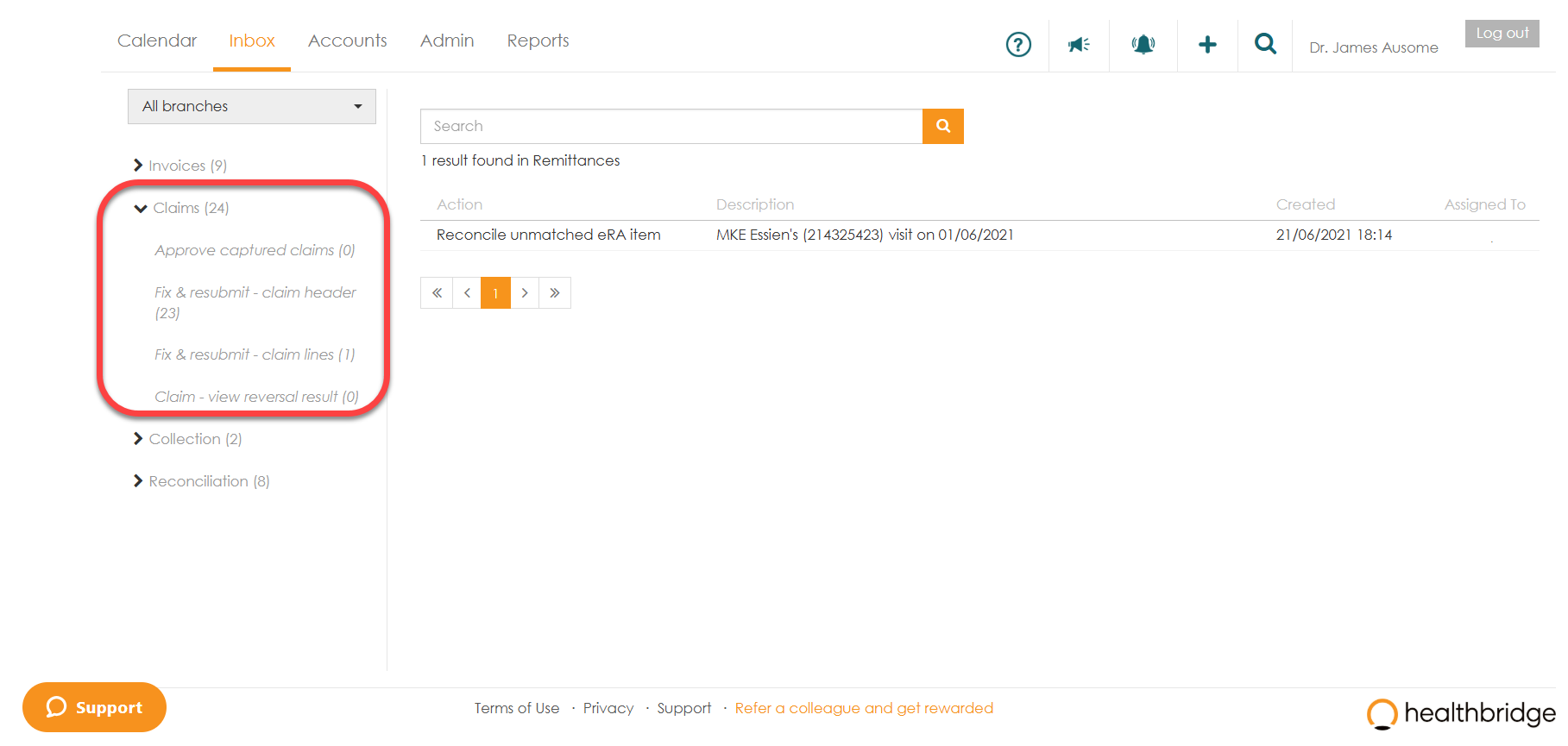
These claim responses are divided into 2 categories:
- ‘ Fix & resubmit - claim header ’. These are rejections based on incorrect member and ICD10 codes.
- ‘ Fix & resubmit - claim lines ’. These are rejections based on incorrect claim line details, eg. tariff codes etc.
To fix a claim header.These rejections are based on incorrect member or practice details.
- Select ‘Fix & resubmit - claim header’.
- Click on the claim that needs to be fixed in order to open it.
- Read the medical aid response and select ‘Fix claim and resubmit’ from the drop-down list and click on ‘Proceed’.
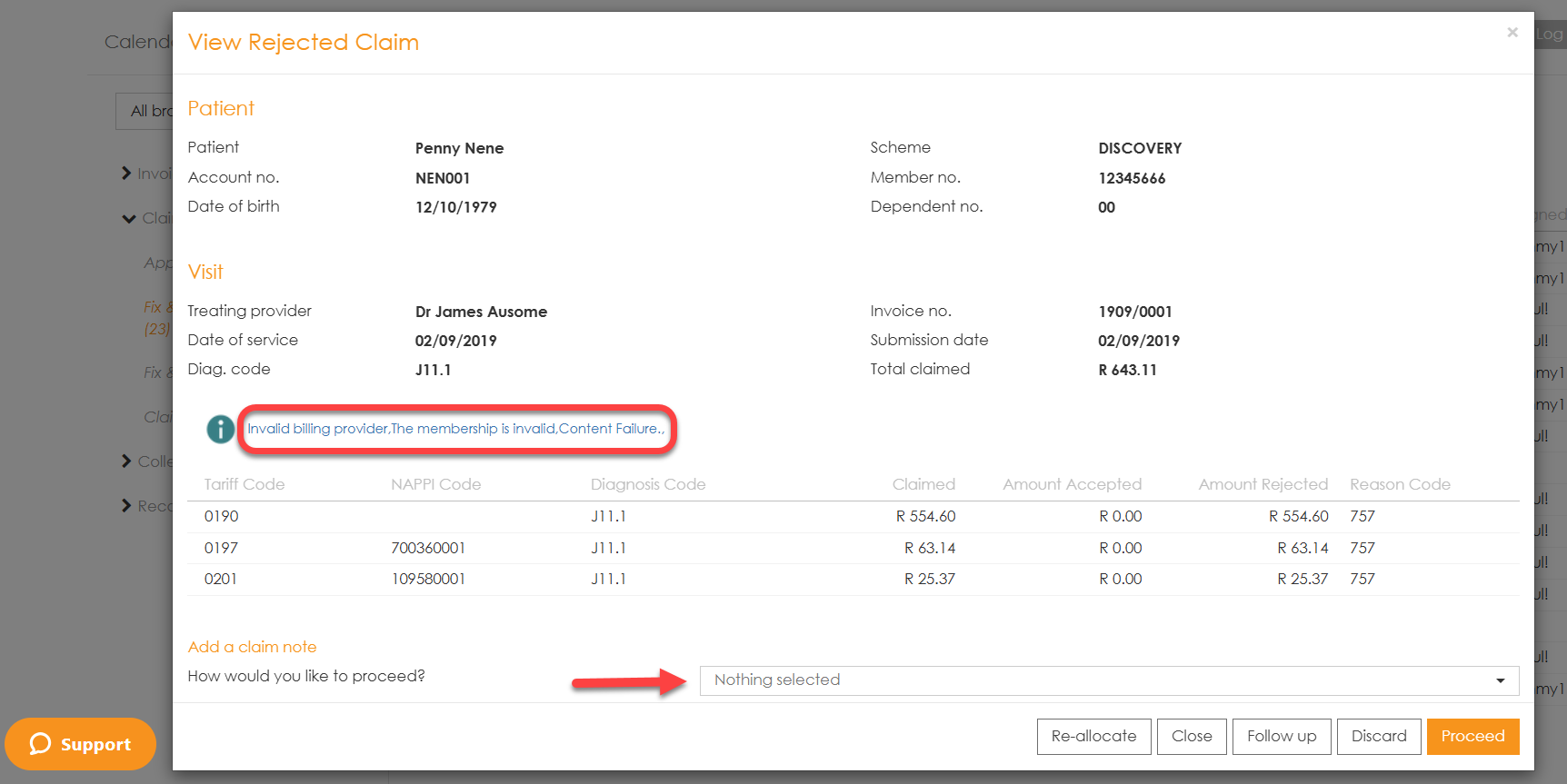
- Click on ‘edit’ and update with the correct details and save.
- Click ‘Save’ and then ‘ Submit ’ the claim.
To fix a claim line.These are rejections based on incorrect claim line details, eg. tariff codes etc.
- Select ‘Fix & resubmit - claim lines’.
- Select the claim that needs to be fixed, which will be highlighted in red.
- Hover your mouse on the ‘ Reason Code’ of the rejected claim line in order to read the response.
- Select the appropriate action from the drop-down list and click on ‘Proceed’.
- Fix the claim line on the invoice screen and ‘ Submit ’.