
How to add patients to myMPS
How to add a patient in myMPS
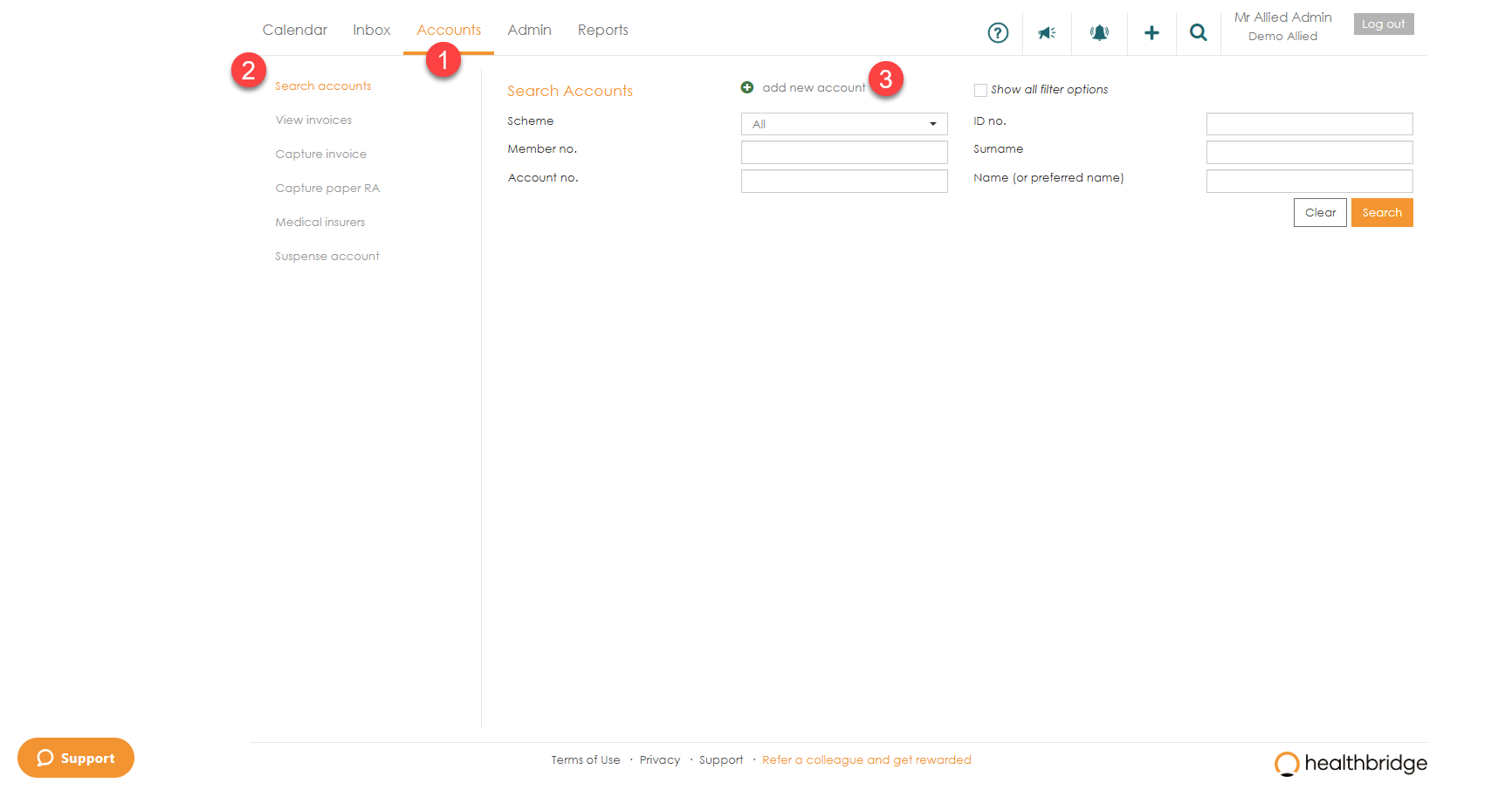
- To add a new patient, click on the ‘Accounts’ tab.
- Ensure that the ‘Search Accounts’ menu option is highlighted.
- Click on ‘add new account’, this will bring up the ‘Find Members’ page.
How to do a Family Check
There are two ways to complete a Family Check:
- When adding a new patient.
- When updating an existing patient’s account details.
Family Check when adding a new patient
- On the ‘Search account’ page on the ‘Accounts’ tab, click on ‘add new account’.
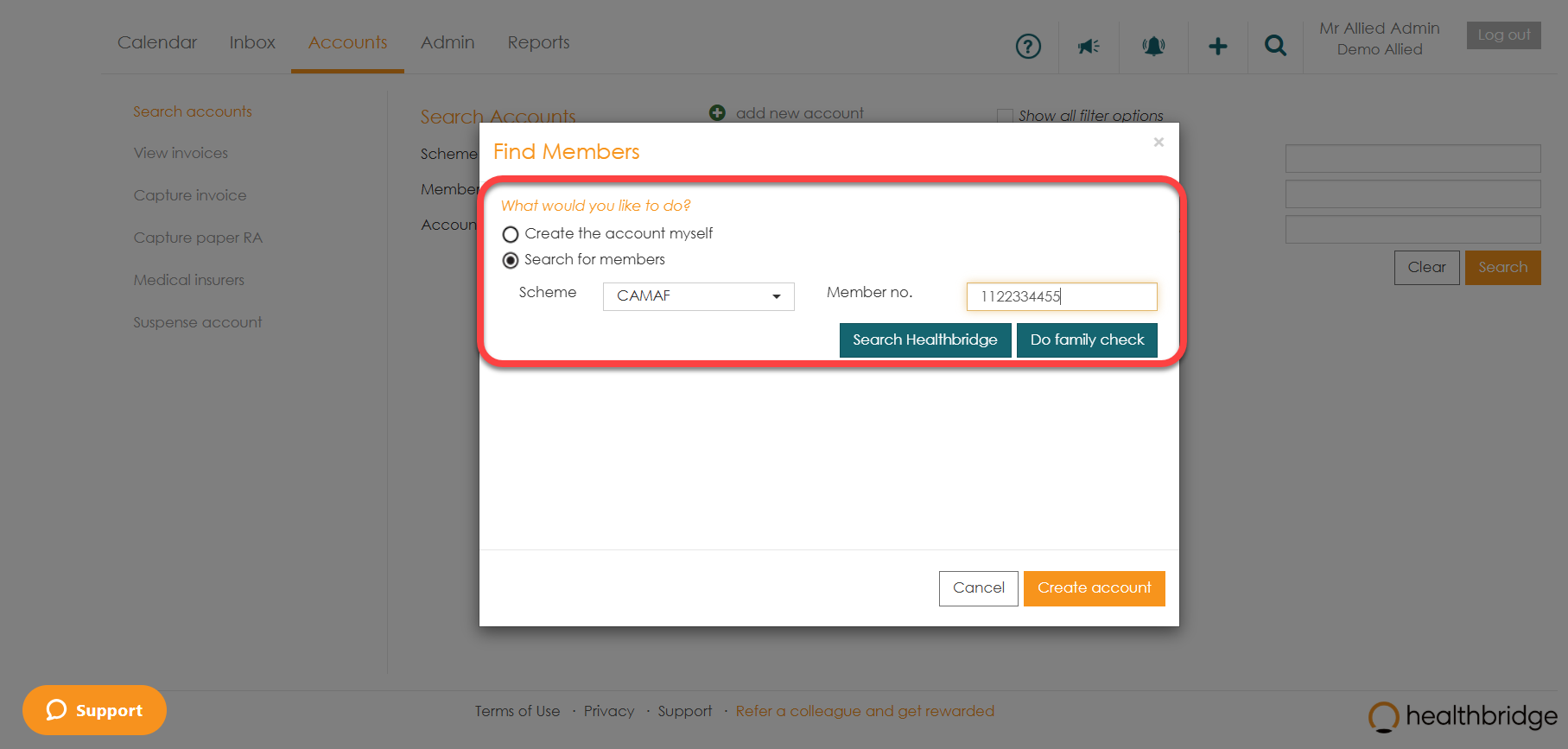
- The ‘Find Members’ page will pop up.
- Select the ‘Search for members’ button, select the ‘Scheme’ name and enter the ‘Member no.’, then click ‘Do family check' myMPS will then return a result of all patients linked to that medical aid number.
- Select the ‘Import?’ checkbox and click on ‘Create account'. Your new patients will be linked to your practice and appear on the ‘Search accounts’ page.
Family Check when updating an existing patient account details
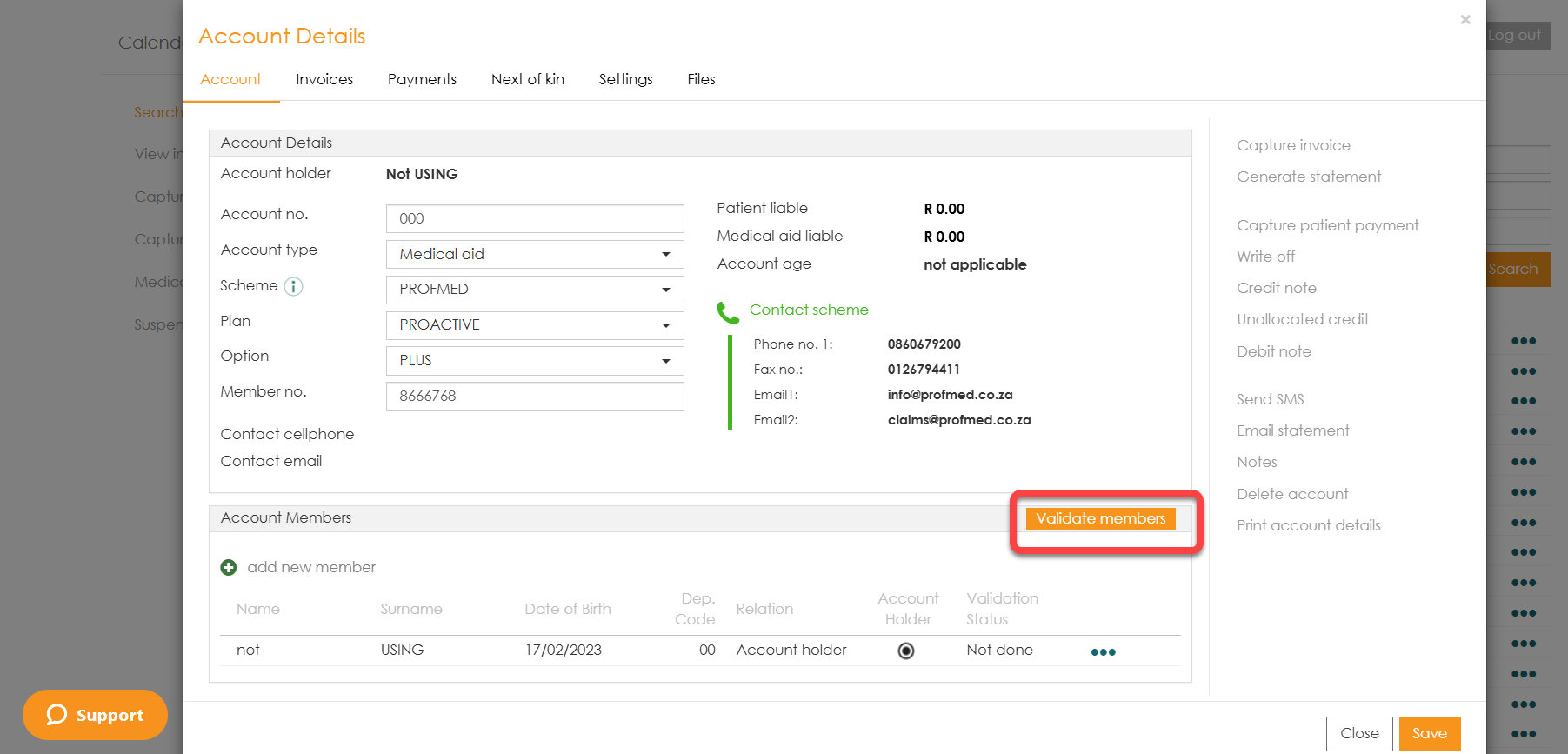
- On the ‘Search account’ page on the ‘Accounts’ tab, click on the patient you would like to link a dependant too. Thereafter select the 'validate members' option highlighted in orange.
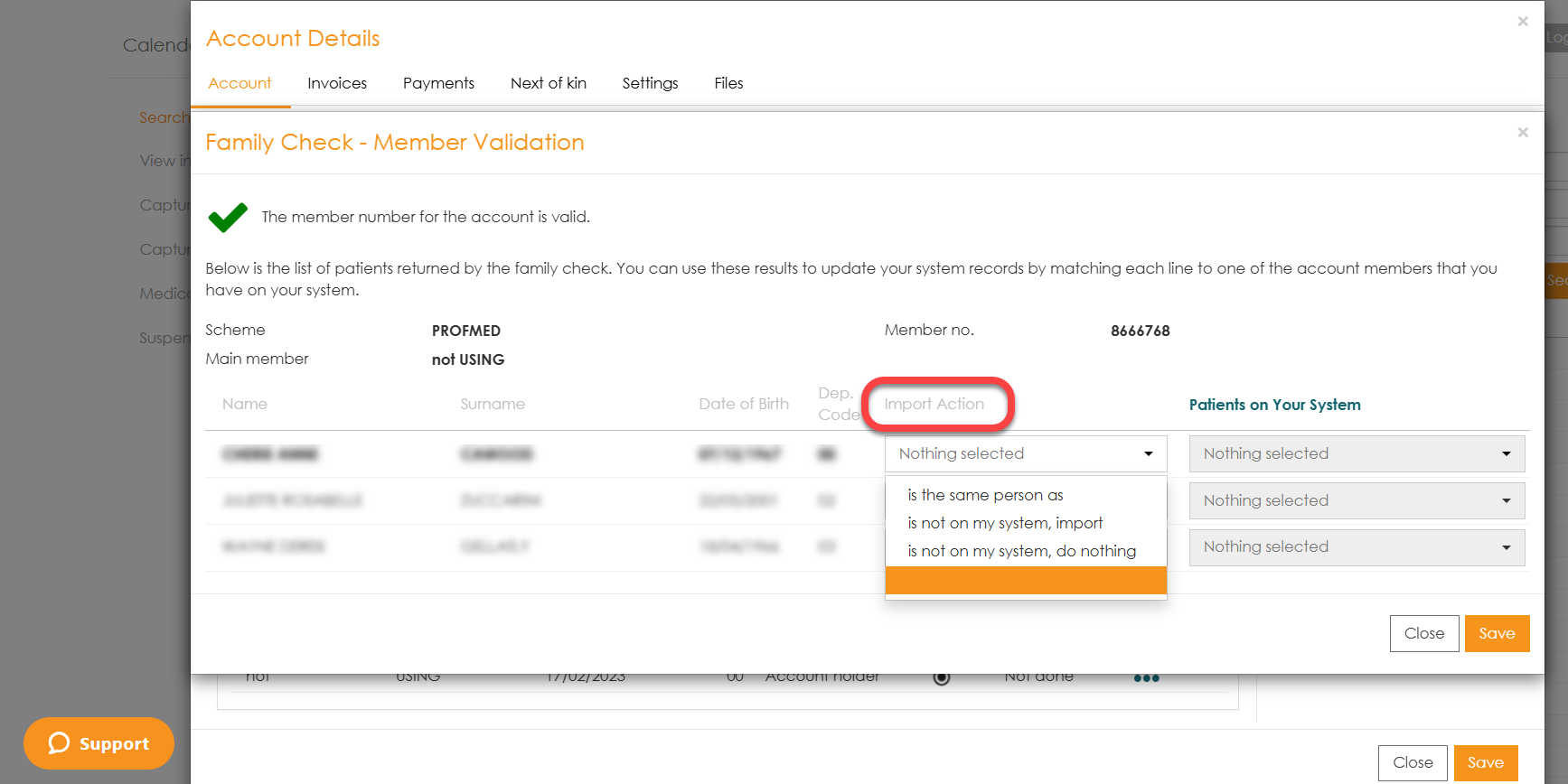
- All members associated with the entered membership number will be displayed. Select the family member you would like to import.
- Select ‘is not on my system, import’ then click ‘Save’
- You will return to the ‘Account Details' page. Click on ‘Save’ to finalise the addition.
Creating a new account from the Healthbridge Community
- To create a new account from the Healthbridge Community click ‘Search for members.
- Complete the patient's medical aid scheme and member number and click ‘Search Healthbridge’. This will return all details available in our system for this patient. You can then simply link the patient to your practice. You are also able to check for any family members linked to their medical aid and link them to the account.
- By searching the Healthbridge community first, you will save yourself time.

To create a new account yourself
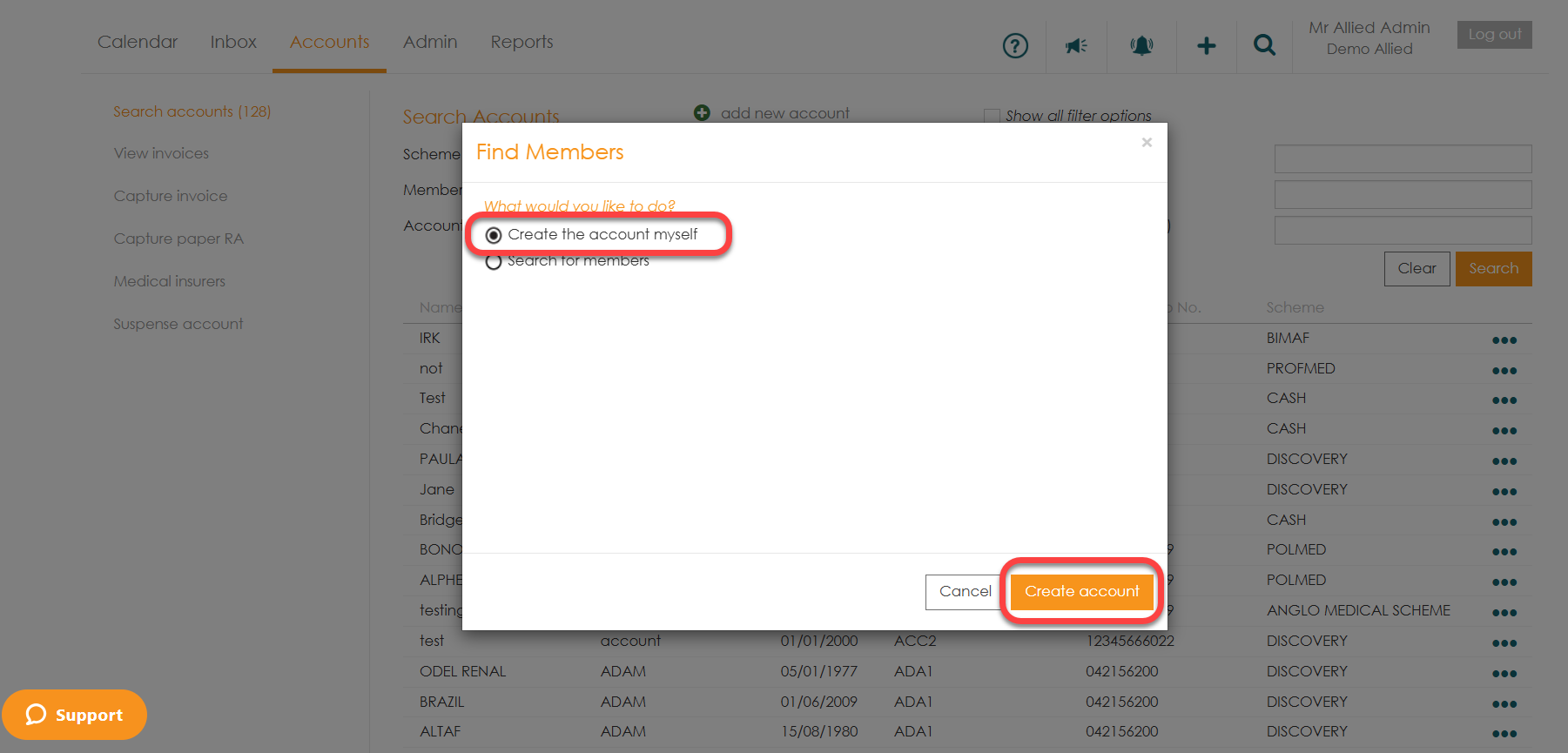
- Select ‘Create the account myself’ and click ‘Create account’.
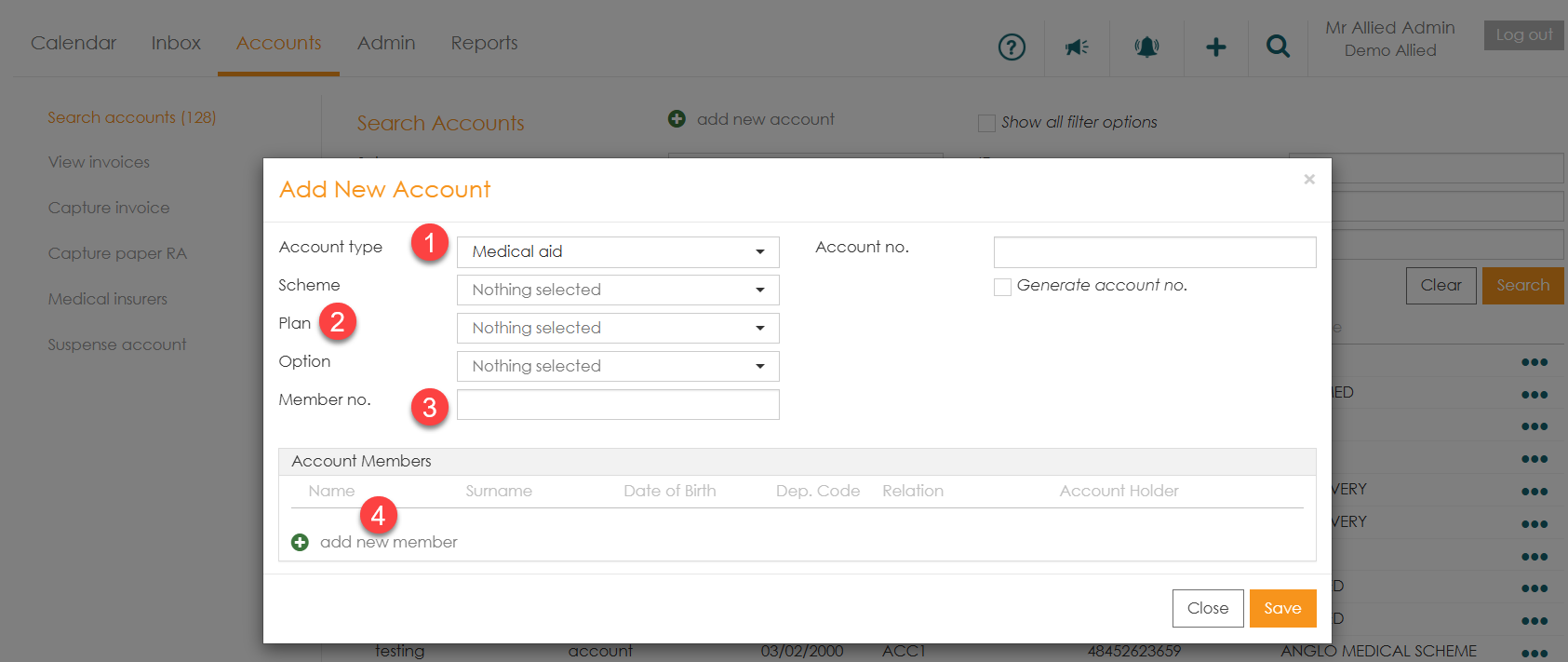
You will need to complete the scheme details for the patient:
- Select ‘Account type’, If they are being added as a medical aid patient,
- select the ‘Scheme’, ‘Plan’ and ‘Option’,
- Input the ‘Member no.'
- Thereafter Click ‘add new member’.
- Complete all the relevant details for the member on the ‘Add Member to Account’ and click ‘Save’.
- Once you have completed the details and saved that data, you will be sent back to the ‘Add new account’ page. There you need to add an ‘Account no.’, or click ‘Generate account no.’ to allow myMPS to create an account number for you.
- Click ‘Save’.
