
How to manage electronic remittances (eRAs)
Remittances are received electronically into myMPS and matched automatically to the claims for real-time schemes.
- Matched eRAs are found in the ‘Inbox’ under ‘Acknowledge eRA processed’
- Unmatched eRAs will be found in ‘Reconcile unmatched eRA item’
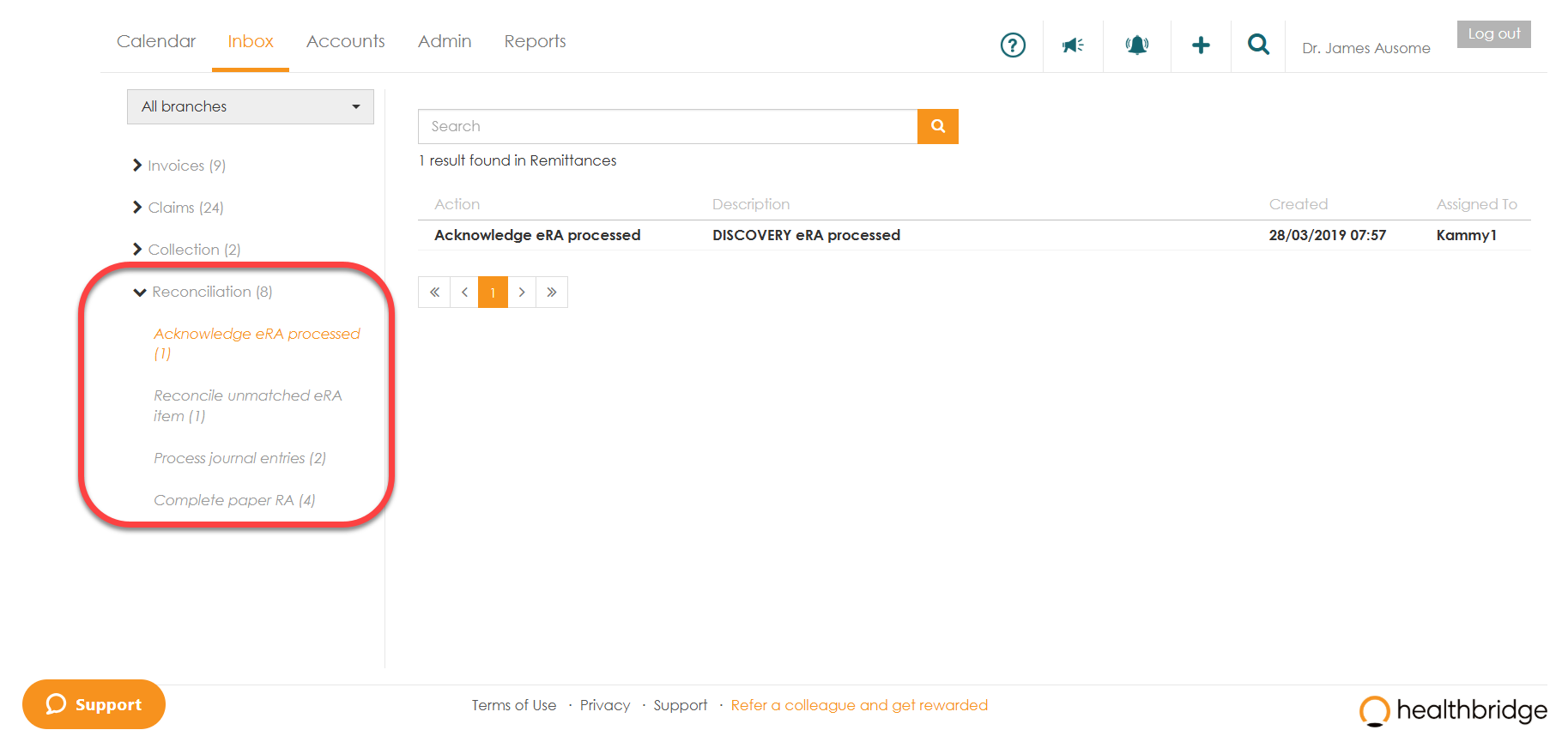
Acknowledge eRA processed
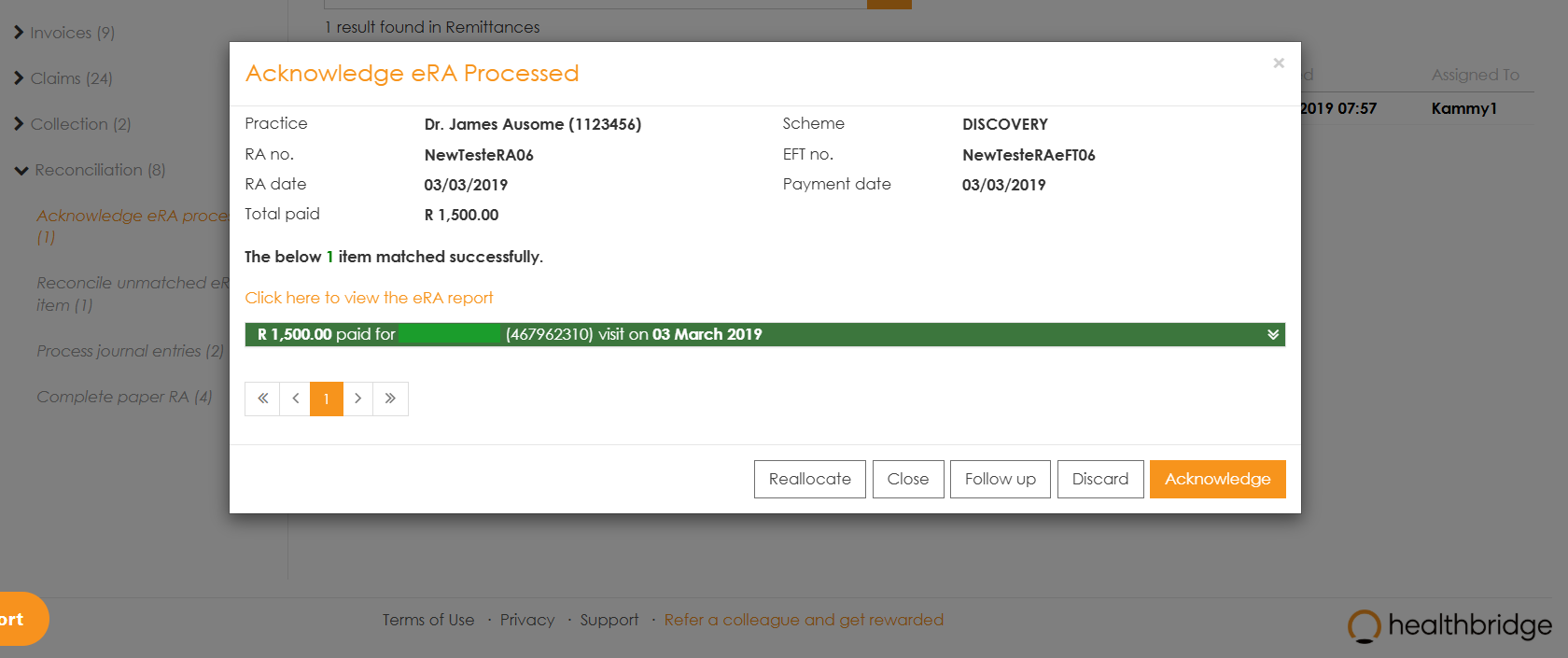
- Select the eRA you would like to acknowledge.
- Click on the drop arrow, on the right of the line, in order to view the eRA, or
- Click on the ‘Acknowledge’ button to accept the reconciliation done by myMPS .
Reconcile unmatched eRA item
There are a number of reasons why eRA’s may not match correctly. Once you open the eRA, you can find out the reason and take appropriate action.
- The eRA will be populated in the top grid with the patient’s details, the amount paid, date of service, claim lines and reason code. (Hover your mouse over the reason code in order to read the medical aid response).
- myMPS will auto-populate the account details of the patient to match the payment. (In the case where the system cannot find the patient, you can type in the membership number in the search column).
- The ‘unallocated amount’ will be highlighted in red.
- Potential invoices to match the payment are generated by the system.

5. Once all potential invoices have been populated, you can manually match in 2 ways:
- Use the ‘ Match Line ’ functionality by selecting the corresponding number on the line item to match back to the RA payment lines. myMPS will automatically populate the amount paid. OR
- Capture the payment reflecting on the RA in the ‘Amount Paid’ column for the correct claim line.

6. Once all payments have been allocated, the ‘Unallocated Amount’ be reflected a zero and you can save.
7. If the RA could not be reconciled, select the ‘Could not reconcile’ checkbox and choose from the reasons listed.
The first option will remove the work item from the Inbox, but the remittance will be available to reconcile later in the 'Suspense Account'.
The last three options mean that the unmatched remittance must be ignored totally. It will still be visible on the remittance statement report (the reason you provided will also be visible on the report), but it will not be in the Suspense Account any longer.
Accessing the Suspense Account
The suspense account is found in the ‘Accounts tab’ and gives you a list of all unreconciled remittances that were discarded from the inbox.
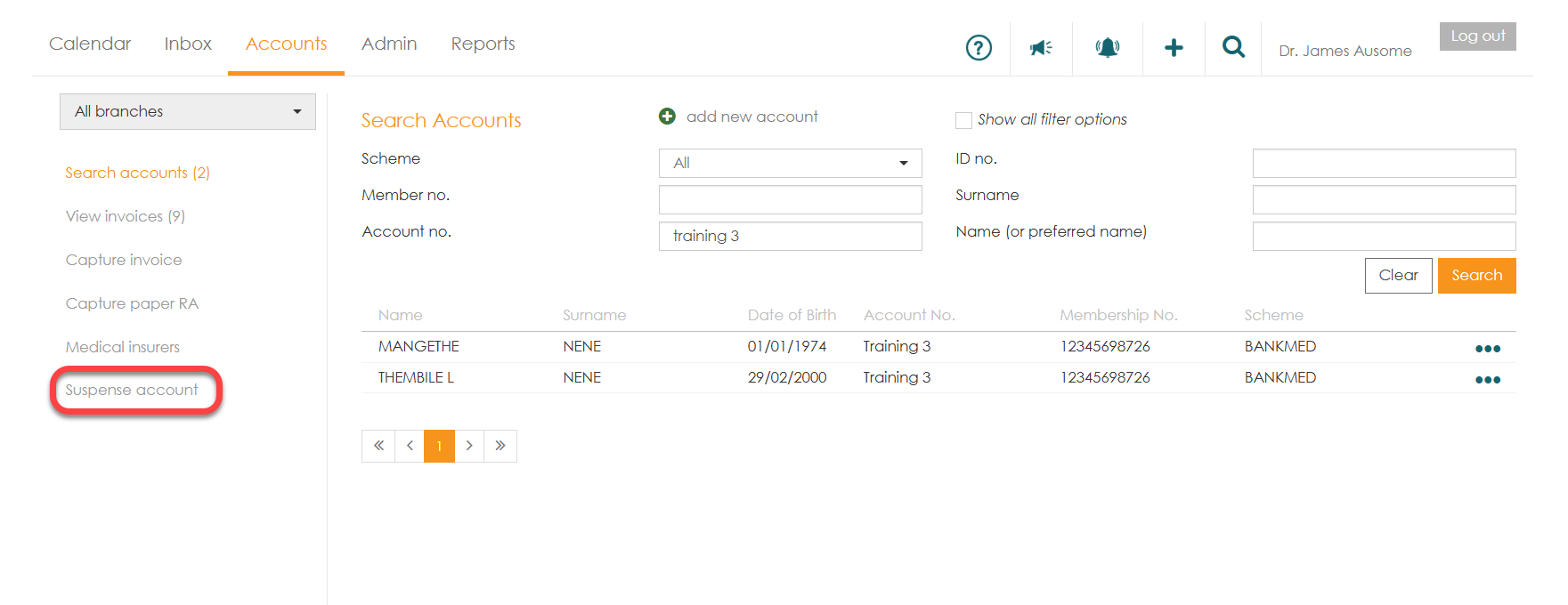
You can search for a specific RA by using the search options available and clicking ‘Search’.
Alternatively, you can also capture a paper remittance by following the below steps:
How to capture a paper remittance
Paper RA’s are remittances that are sent directly to the practice by the schemes because they do not have the capability to send these remittances into my MPS electronically.
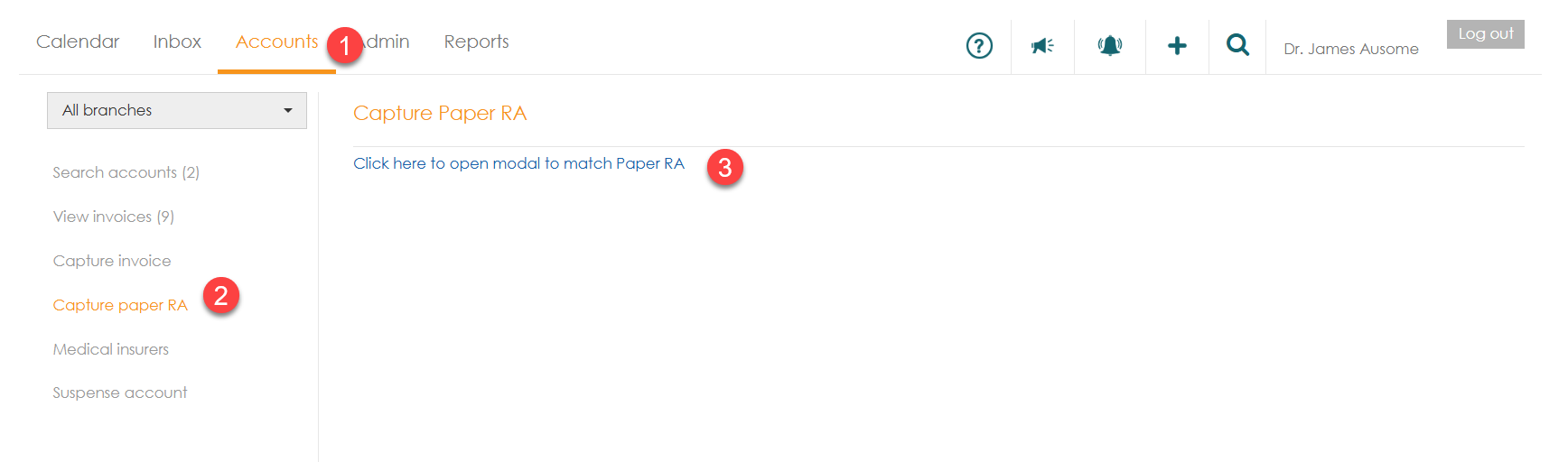
- From the ‘Accounts’ tab, click the ‘Capture paper RA’ menu option.
- Then select the link ‘Click here to open modal to match Paper RA’.
- Select the scheme from the drop-down list.
Complete all mandatory info such as RA/statement date, paid amount, statement type etc (as you see it in the RA statement). Once the patient is found, their invoices will populate at the bottom of the screen, for you to match the payment to the invoices.
