
How to create Templates and Favorites
How to Set up Templates and favourites from the the Provider screen
From the provider screen, click the ‘Templates’ tab, these have been divided into sub tabs, namely; Diagnosis, Procedures, Medicines, Consumables and Favourites.
Select the category of template you would like to add and then click the ‘add new’ button.
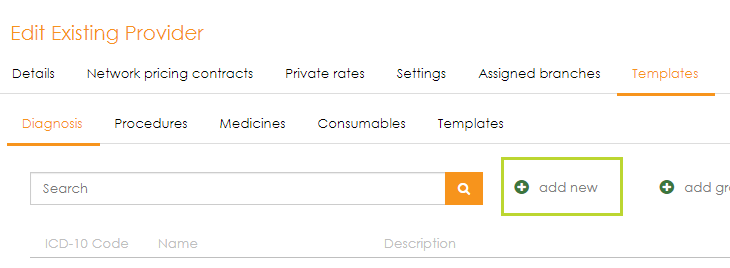
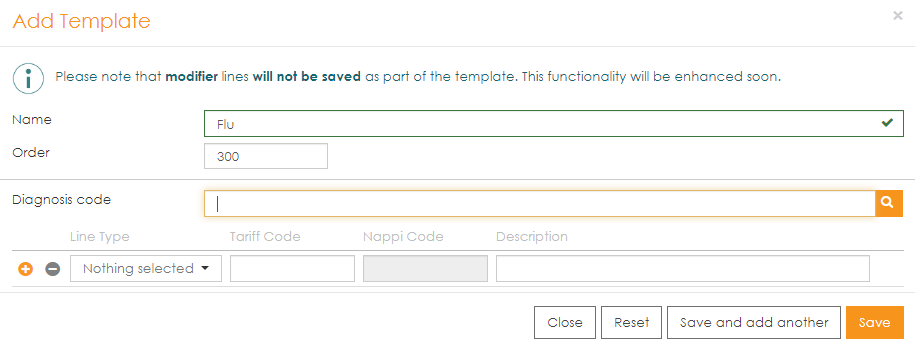
From the ‘Add Template’ screen, you can give the template a custom name and then add the diagnosis, procedure code, any medicine and consumable. This is done similarly to capturing an invoice. The order of the templates is assigned automatically.
Note: The ‘add group’ button enables you to group templates together for easier selection when capturing an invoice. Once you’ve clicked add ‘group button’, You can then specify a name for the group, and add favourites to the group.
|
Copying Templates from one provider to another
For practices that have multiple providers, templates can be copied from one provider to another.
If you would like to copy templates to a specific provider, navigate to that provider’s ‘ Templates’ tab and click on the ‘copy from’ link.
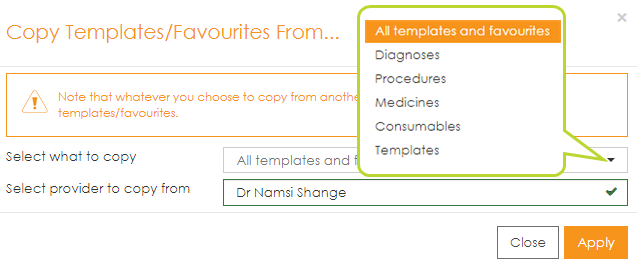
From the pop up screen, select what you would like to copy from the drop down list and then the provider that you would like to copy to.
| Note: Copying templates from one provider to another will overwrite any saved templates for the selected provider. |
Setting templates and favourites from the Capture Invoice screen
Templates and favourites can also be customised from the ‘Capture invoice’ screen using either the ‘Templates’ control, or by creating a template from the invoice lines you have already captured.
Using the Templates functionality
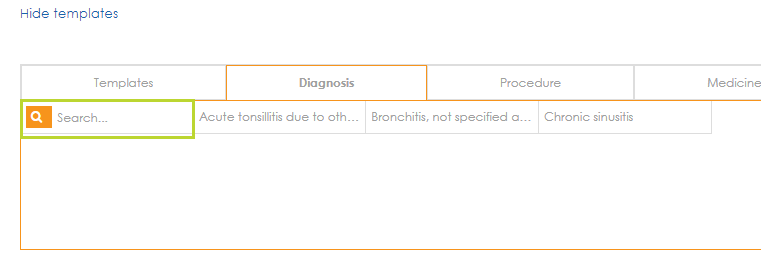
Once the ‘Show templates’ link has been opened, all your saved favourites will be available on whichever tab you are on. You can use the ‘search’ button to add new ones.
- Search for the favourite you would like to add by either typing the code or description.
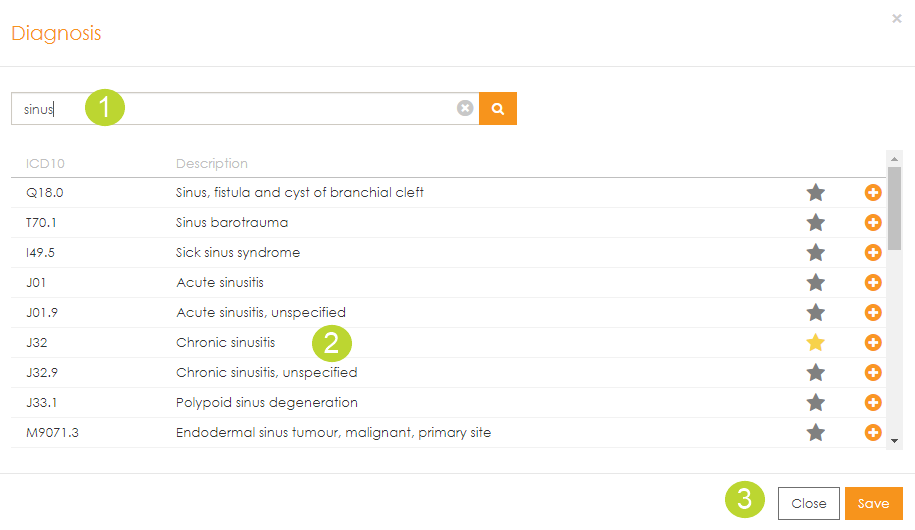
- From the populated list, click on the star to add the item as a favourite (an orange star indicates that the item has already been added). This will then open another screen where you can give the template a name and then save.
- Click save again and the favourite will then be added to the list.
Creating templates from capture invoice screen
If you have captured an invoice and realise that you use it often and would like to save it as a template, simply click the ‘Create Template’ button at the bottom of the screen.
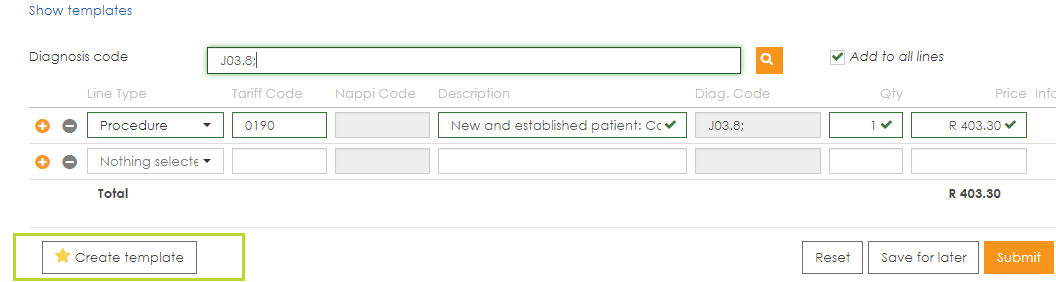
This will then open another screen where you can give the template a name and then save.