
How to add a new user in myMPS
How to Setup a new User
To add a new user (administrator, owner, receptionist, etc) on myMPS,
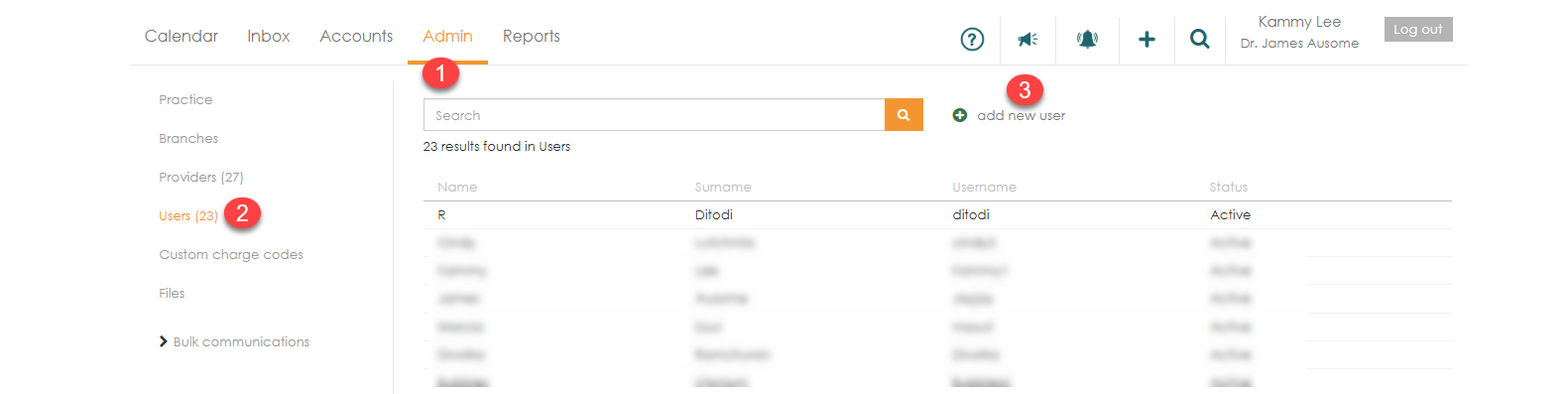
- Click on ‘Admin’.
- Select ‘Users’.
- Click ‘add new user’.
- The ‘Add new user’ page will pop up. Complete all the information required in the template and click ‘Save’.
- Once you save the user details, a pop-up will give you an option to complete the setup or just save the user as you have loaded them.
- Once you click on ‘Yes’ you can then proceed to assign the user to receive automated subscriptions and reports or assign them to other branches as well.
