Managing Patient Accounts
There are many different options/ways to managing a Patient Accounts
- View account details.
- View all invoices linked to this account.
- View payments.
- Add or update next of kin details.
- Suspend an account.
To manage a patient's account
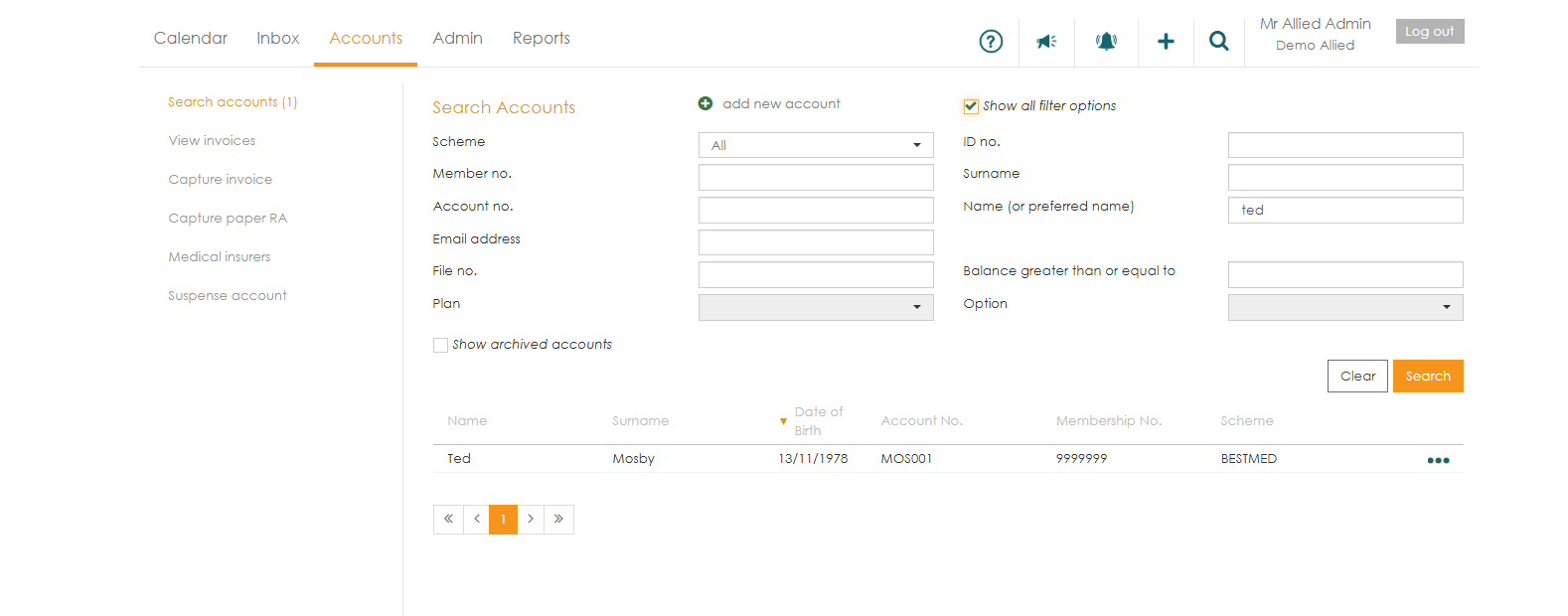
- Click on the ‘Accounts’ tab,
- Select the ‘Search accounts’ menu option. You can search for a specific patient account by filling in any of the fields and clicking on ‘Search’.
Account details
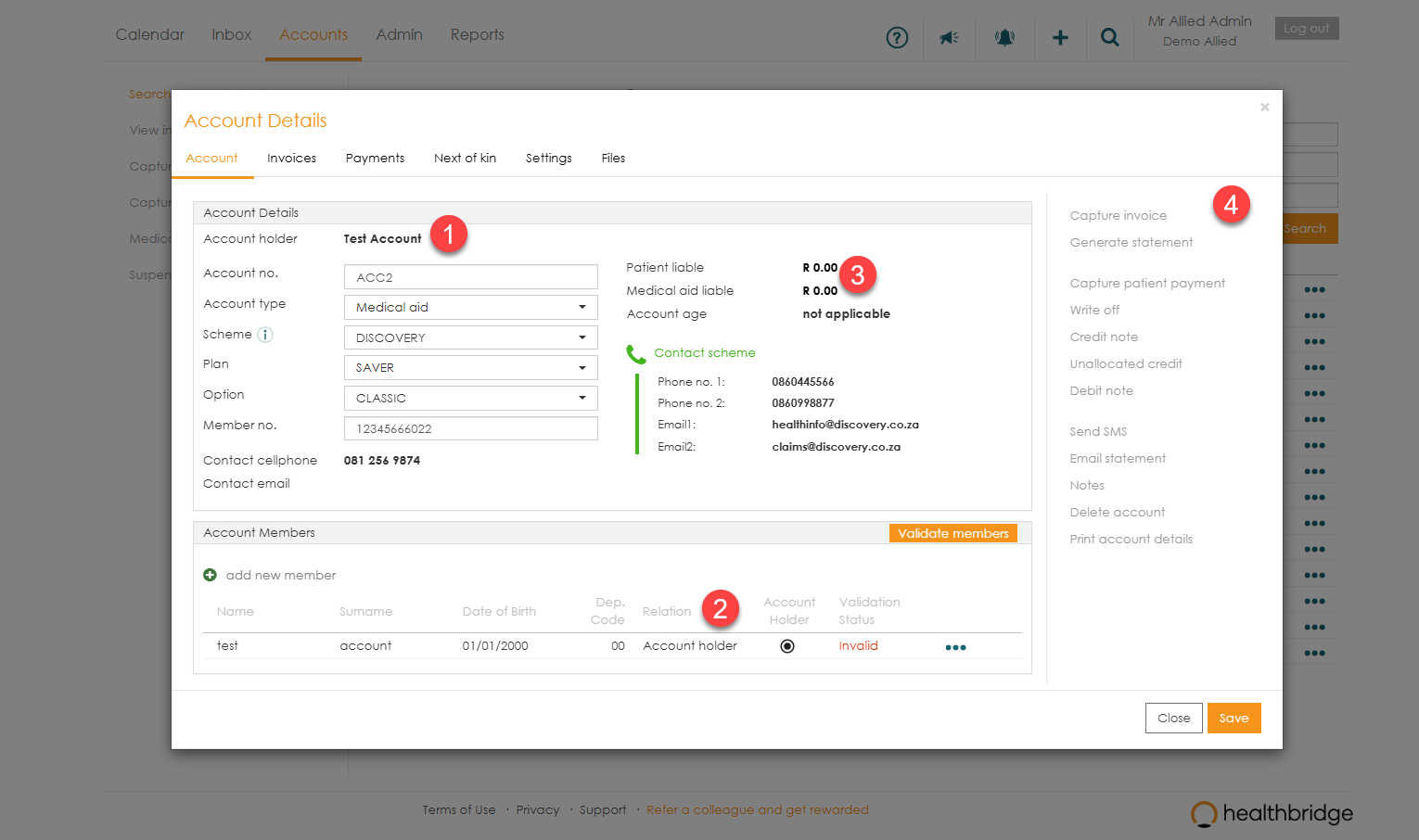
From the ‘Account Details’ screen you can:
- Update or change Medical Aid details.
- Add a new member, or edit existing member details.
- See all of the outstanding amounts.
- Use the options available to manage the outstanding amounts (eg. sending SMS’s, emailing statements, writing off small amounts, etc).
View all Invoices linked to this account
- The Invoices tab gives you a list of all invoices for the selected account. By clicking on the invoice, the full details and any remittances linked to the invoice will open up. The quick menu (... ) also gives you a list of options to choose from for each invoice.

View payments
- Any patient liable amounts that were captured on the system will reflect in the ‘Payments’ tab including the user who captured the payment. This will also include any amounts that were paid by the patient's scheme.

Settings Tab
- You can suspend an account and add a reason for the suspension. Whenever the patient account is searched, a suspension warning will also appear. Each time a patient account is suspended, or, similarly, if the suspension is lifted, the user must add a reason why.

Account suspension warnings
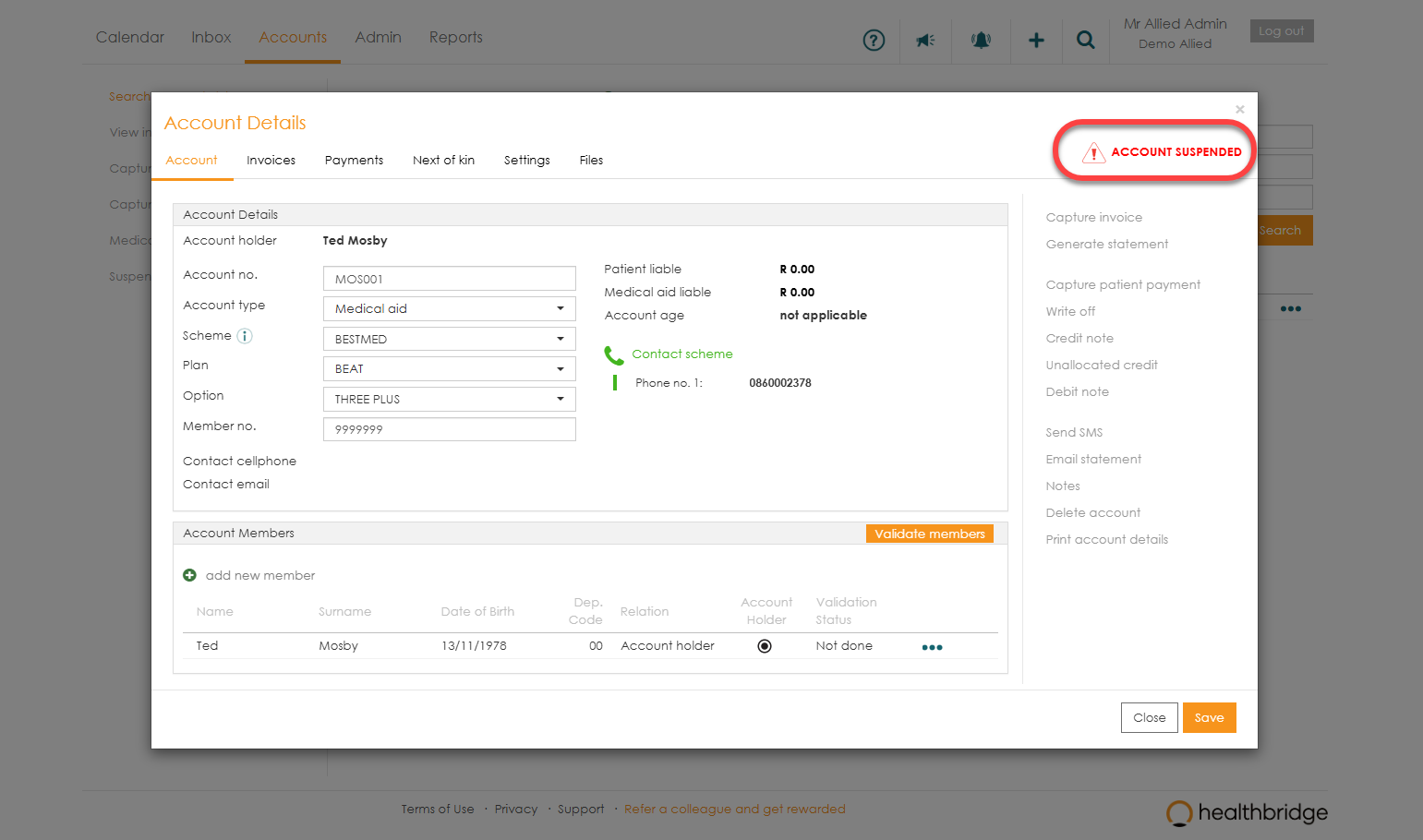
Warnings that an account has been suspended will be displayed in a number of places:
- On the ‘Account Details’ screen.
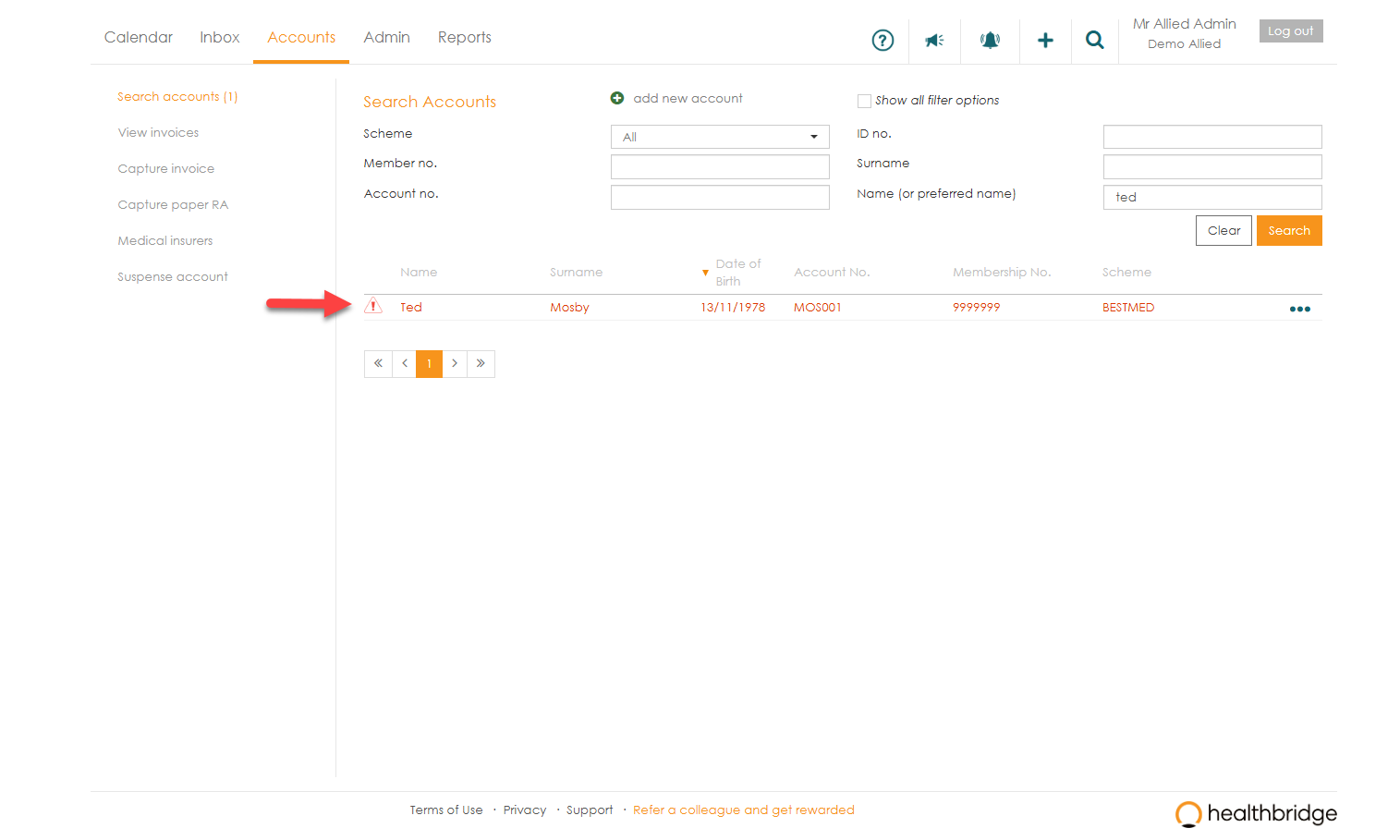
- On the ‘Search Accounts’ screen. Suspended accounts will be written in red text with a red warning icon to the left of the patient's name.
- When you create a new appointment and select a patient with a suspended account, a warning message will pop up

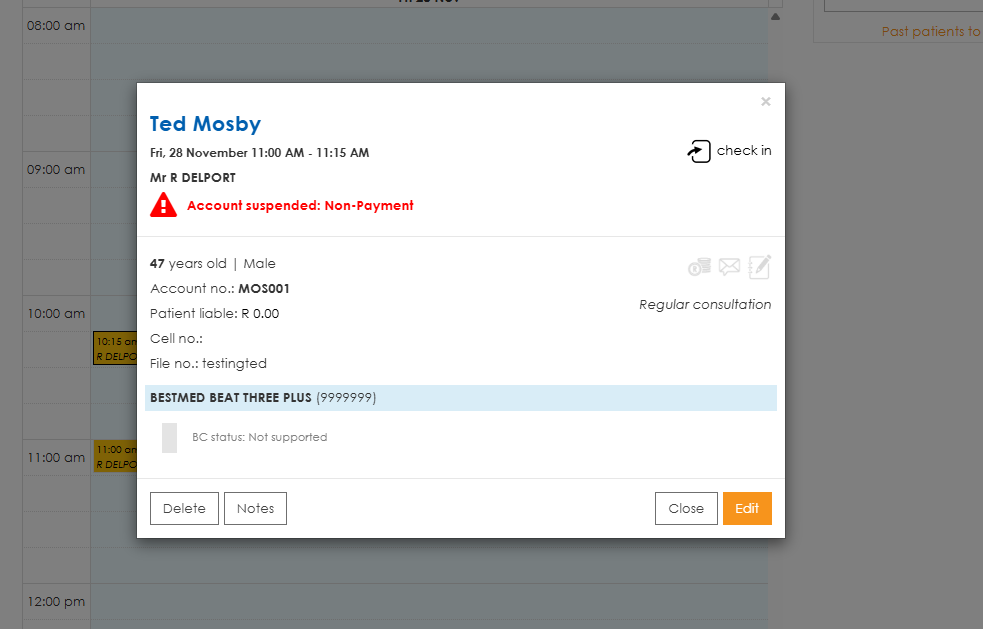
- When you open the appointment summary, the current warning to indicate that there is an outstanding balance will also display the suspension status on the mouse hover.