
Working with the myMPS inbox
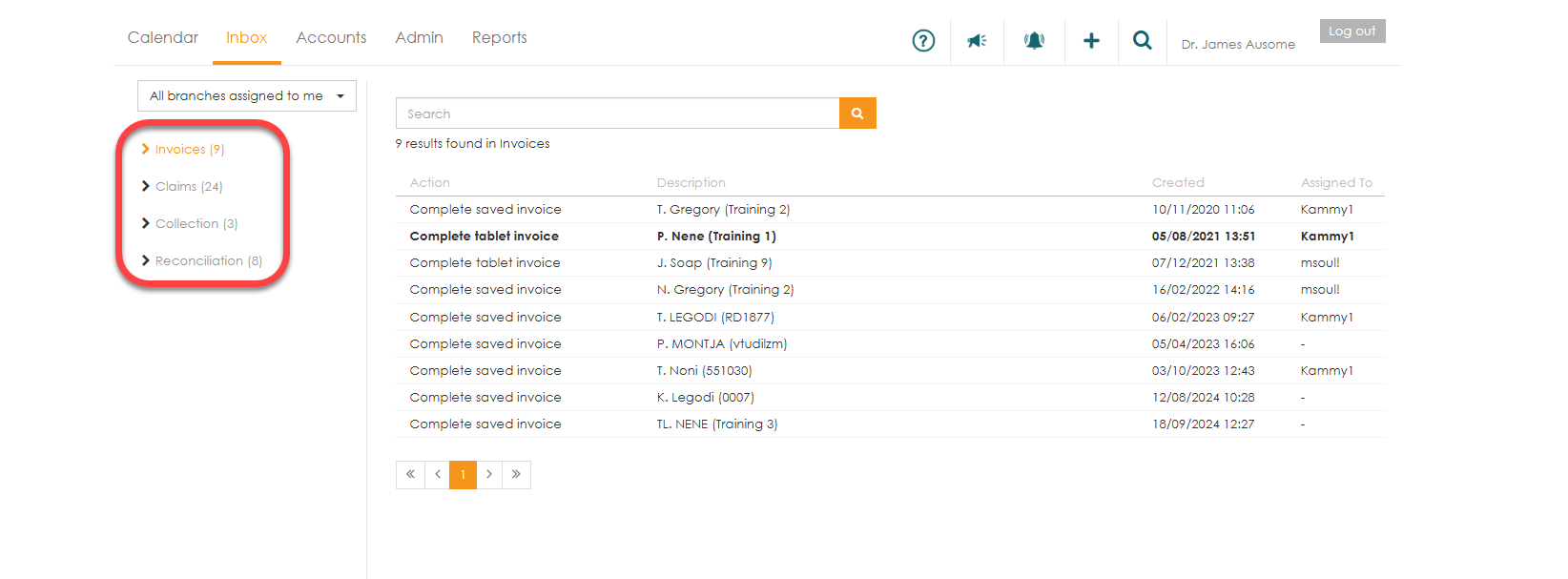
The ‘Inbox’ tab is one central place that will show all work items that require action. These work items are placed in different menu options to easily identify the action required.
Invoices
Any invoice that was captured and not submitted or in ‘Saved for later’ status can be found in this menu option. Click on the ‘Invoice’ menu, select the invoice in order to open it and complete any outstanding fields and submit.

Claims
Invoices that were captured by a junior capturer and require approval prior to submission to the medical aid, will be found in the ‘Approve captured claims’.

Invoices submitted to the medical aid which need to be fixed and resubmitted are divided into 2 categories:
- ‘Fix &resubmit -claim header’- rejections based on incorrect member/ practice details.
- ‘Fix & resubmit - claim line details’ - rejections based on incorrect claim line details (eg. tariff codes)
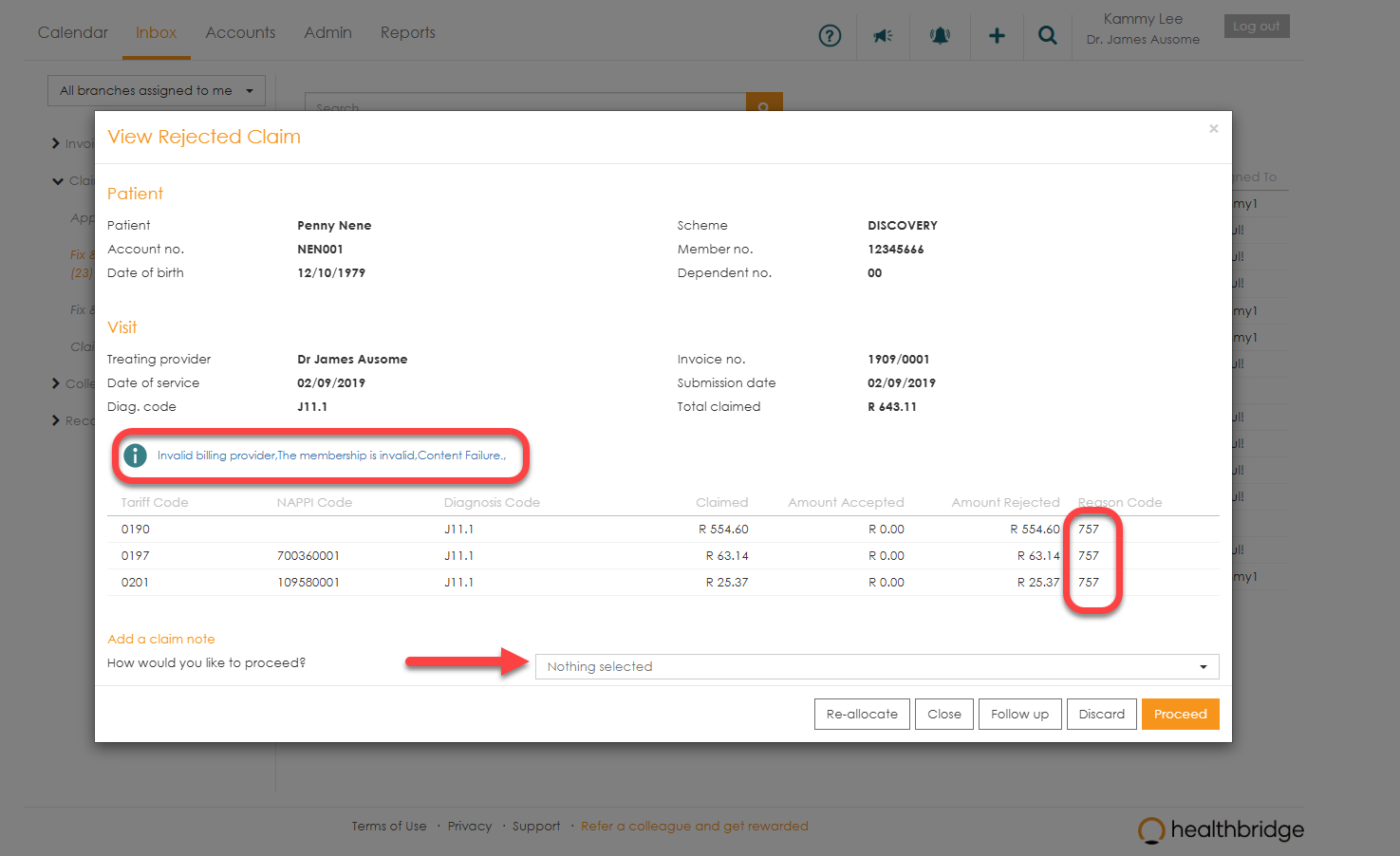
Select the claim that needs to be fixed, read the response and take appropriate action.
Collections
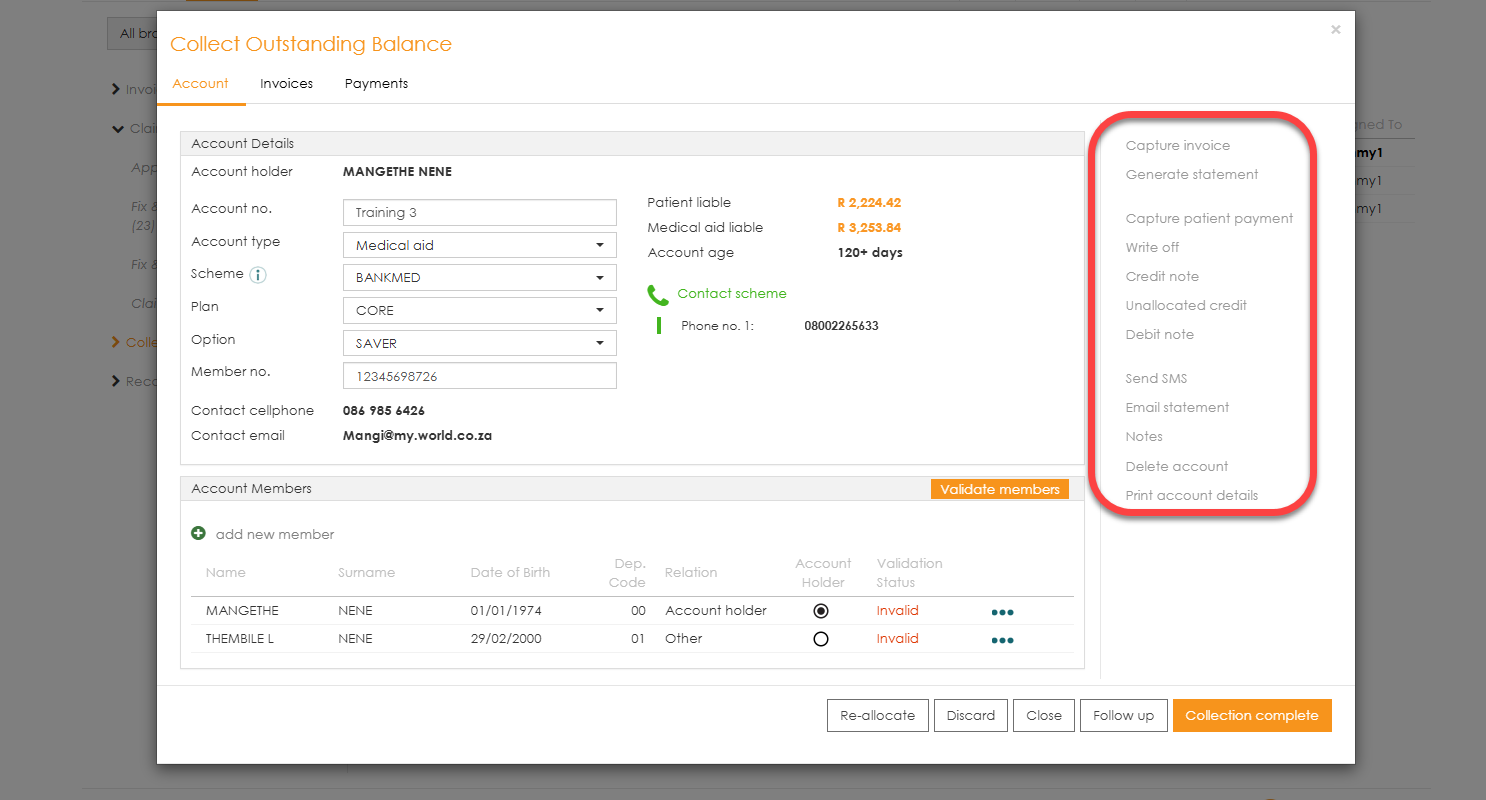
Collections refer to patient liable amounts.To view these amounts:
- Click on the item you would like to work on.
- This will take you to the patient’s account screen where you can view the details in full.
- Select from the different options available for collection such as ‘ Capture patient payment ’, ‘ Credit note ’, ‘ Write off ’, ‘ Send SMS ’, etc.

Reconciliation
Remittances are received electronically into myMPS and matched automatically to the claims on the system for real-time schemes.
- Matched eRAs are found in the ‘Acknowledge eRA processed’ menu option.
- Unmatched eRAs are found in the ‘Reconcile unmatched eRA item’ menu option.
