How to follow up on claims in myMPS
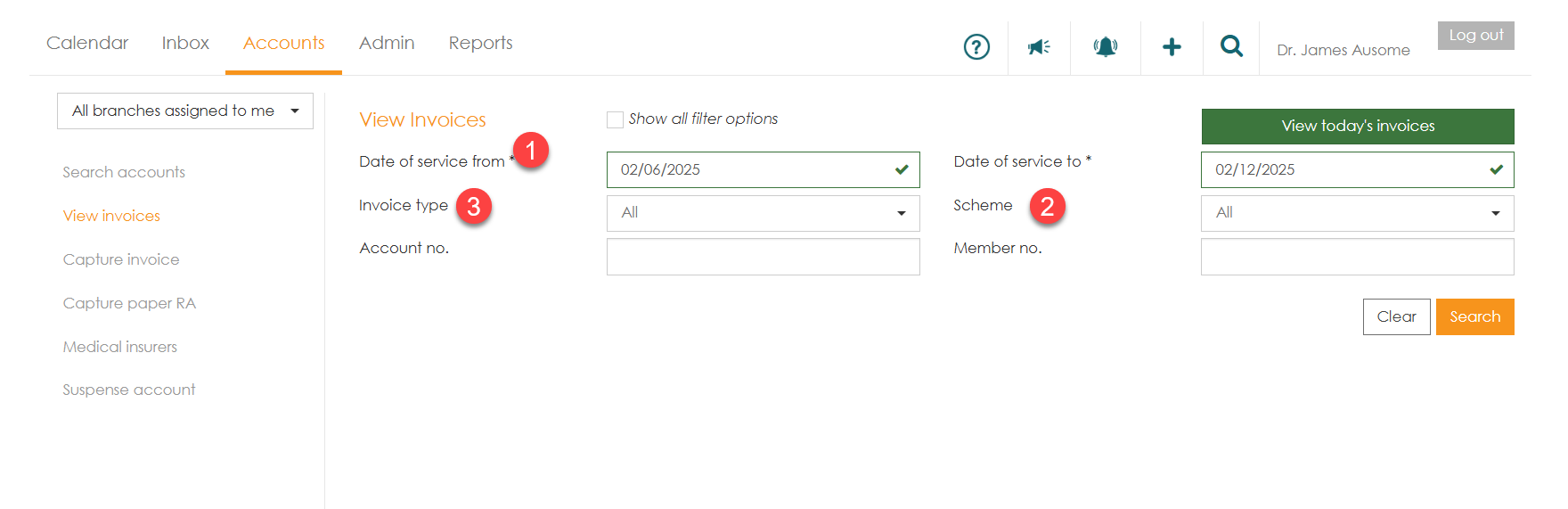
The filter option allows you to search for specific invoices.
The most common filter methods are:
- ‘Date of service’
- ‘Scheme’
- ‘Invoice type’
Alternatively, you can click ‘View today’s invoices’ to see a list of all invoices created on that day.
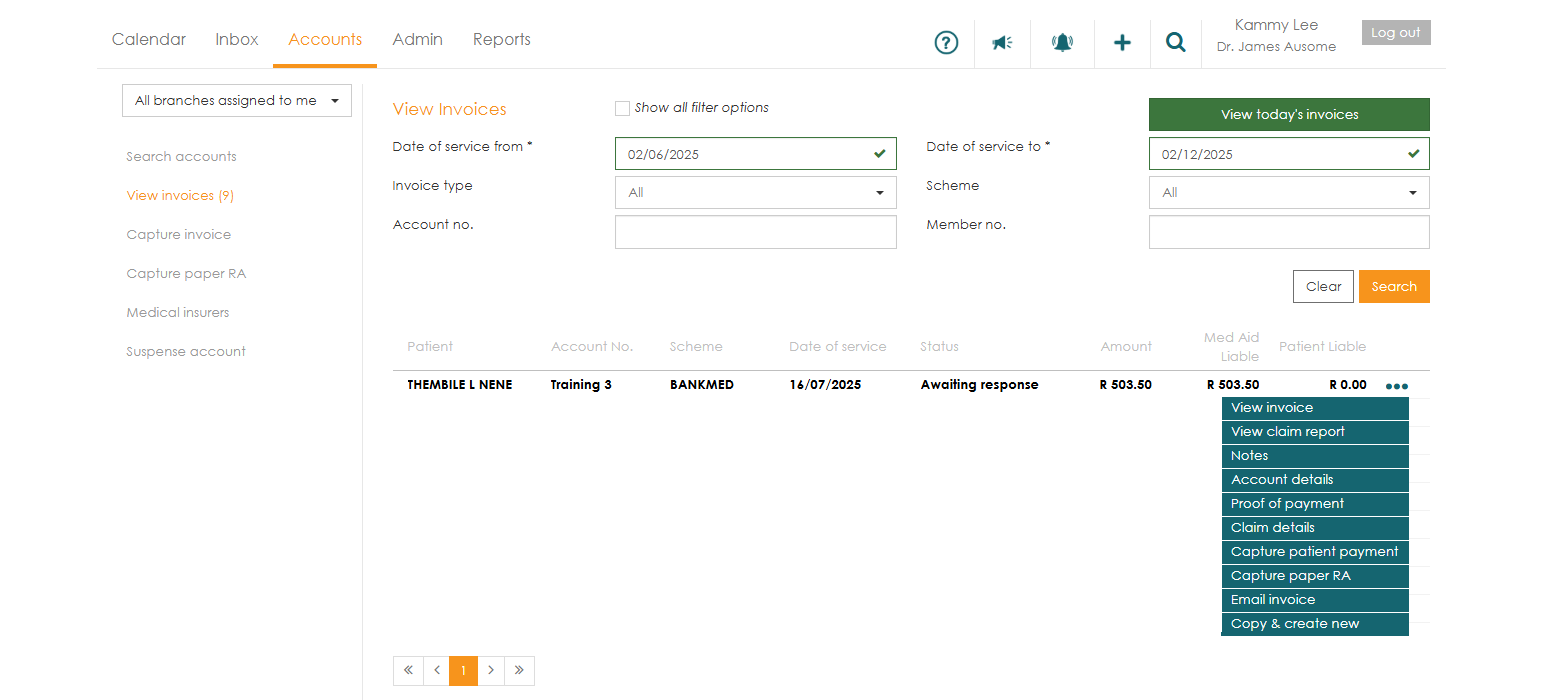
For all listed invoices, you can see the claimed amount, what is Medical Aid liable and what is patient liable for. Click on the invoice in order to view it in detail or select more options from the quick menu (
There are 2 ways to check outstanding amounts on the system.
- ‘View invoices’ menu option.
- ‘Collections’ menu option.
View invoices menu options
A log of all submitted invoices is found in the ‘Accounts’ tab under the ‘View invoices’ menu.
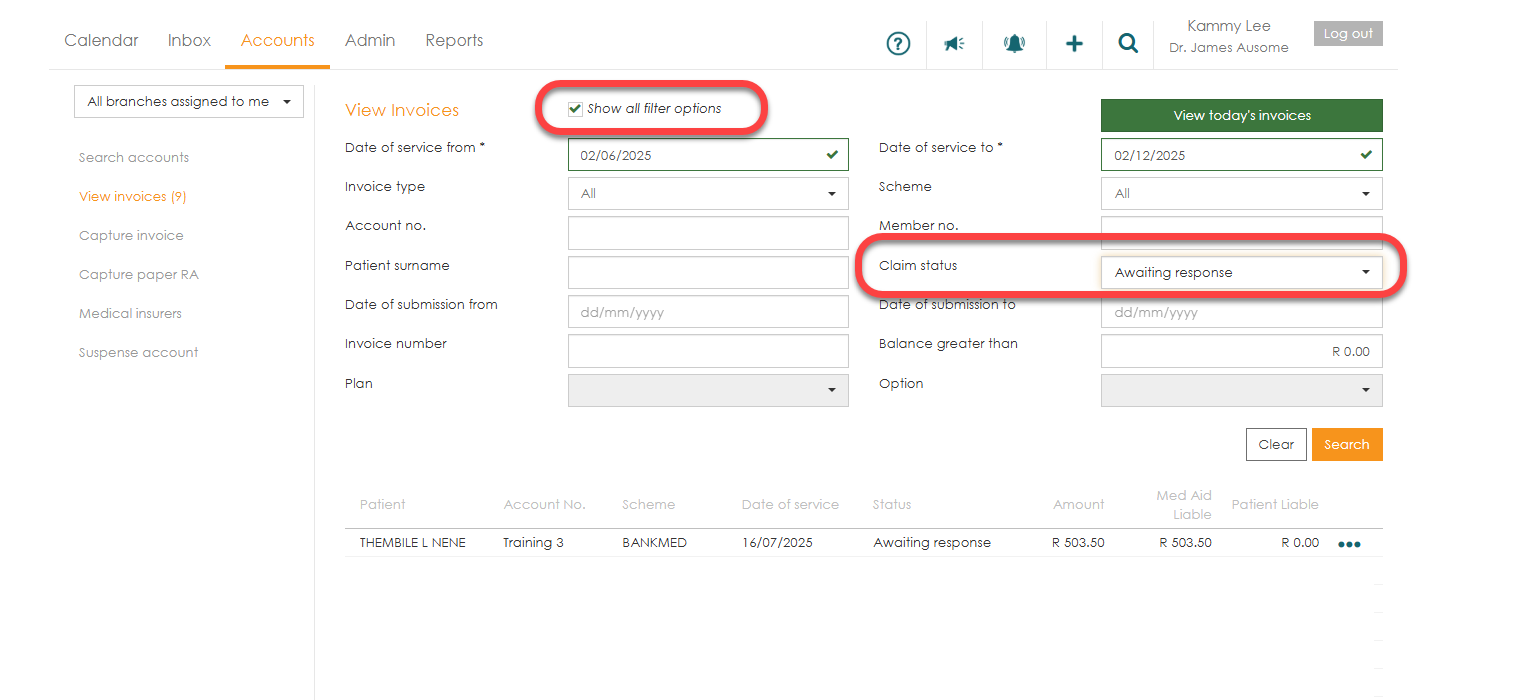
Tick the ‘Show all filter options’ box to narrow your search.
- Click on the drop-down arrow of the ‘Claim status’ option in order to search for invoices that still require action such as rejected or partly rejected invoices.
- This will bring up all invoices that require action and have outstanding amounts.
- Click on each claim to get more details and take appropriate action.
Collections
The ‘Collection’ menu lists all amounts that are patient liable.

To view these amounts:
- Click in the ‘Inbox’ tab and select the ‘Collection’ menu option.
- Click on the item you would like to work on. This will take you to the patient’s account screen where you can view the details in full.
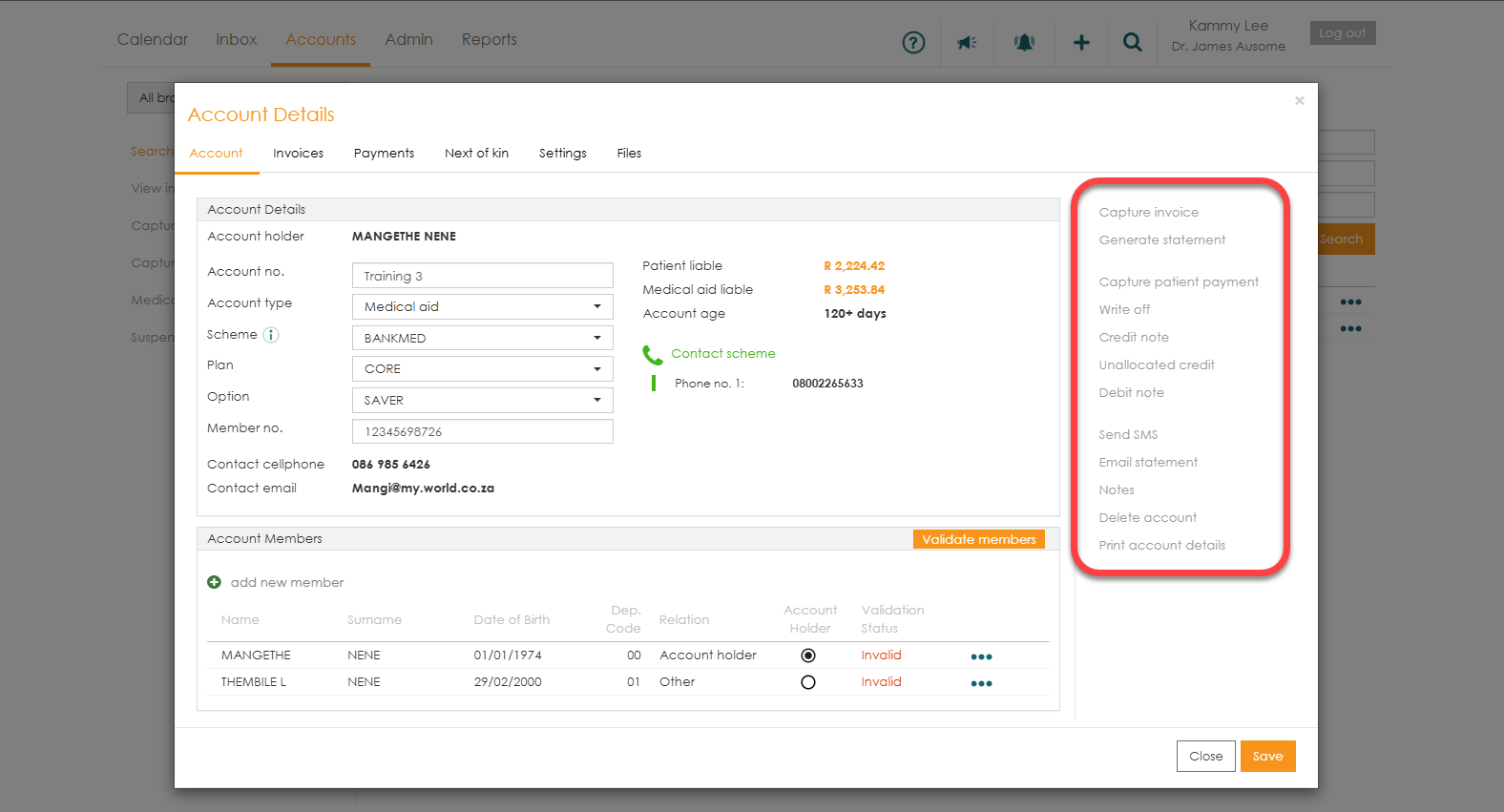
- Select from the different options available for collection such as ‘Generate statement’, ‘write off’, ‘send SMS’ etc.